A lead fills out a HubSpot form. The data saves to a contact record. Your team needs that data in a PDF, whether it's a client intake form or a registration confirmation. HubSpot has no built-in way to convert a form submission into a document.
This question comes up in the HubSpot Community and on the HubSpot Ideas board. HubSpot staff say there is no native feature for turning a form submission into a PDF.
Turning a HubSpot form submission to PDF takes two pieces: the contact properties that HubSpot saves from the form, and a Word template that holds the layout. DocuGen fills the template from those same contact properties and gives you a finished PDF.
For teams that collect intake forms, registration details or onboarding information through HubSpot forms, the path below covers setup from template to finished document.
Not natively. HubSpot saves form answers as contact properties, but there's no built-in step that takes those properties and puts them into a document. DocuGen is a HubSpot Marketplace app that fills a Word template from contact properties and gives you a finished PDF. You keep your own template layout. The free plan covers 400 documents per account per month, as of November 2026.
A client fills out an intake form on your website. HubSpot saves the answers to a contact: first name, email, company, phone and the custom fields your form collected.
1
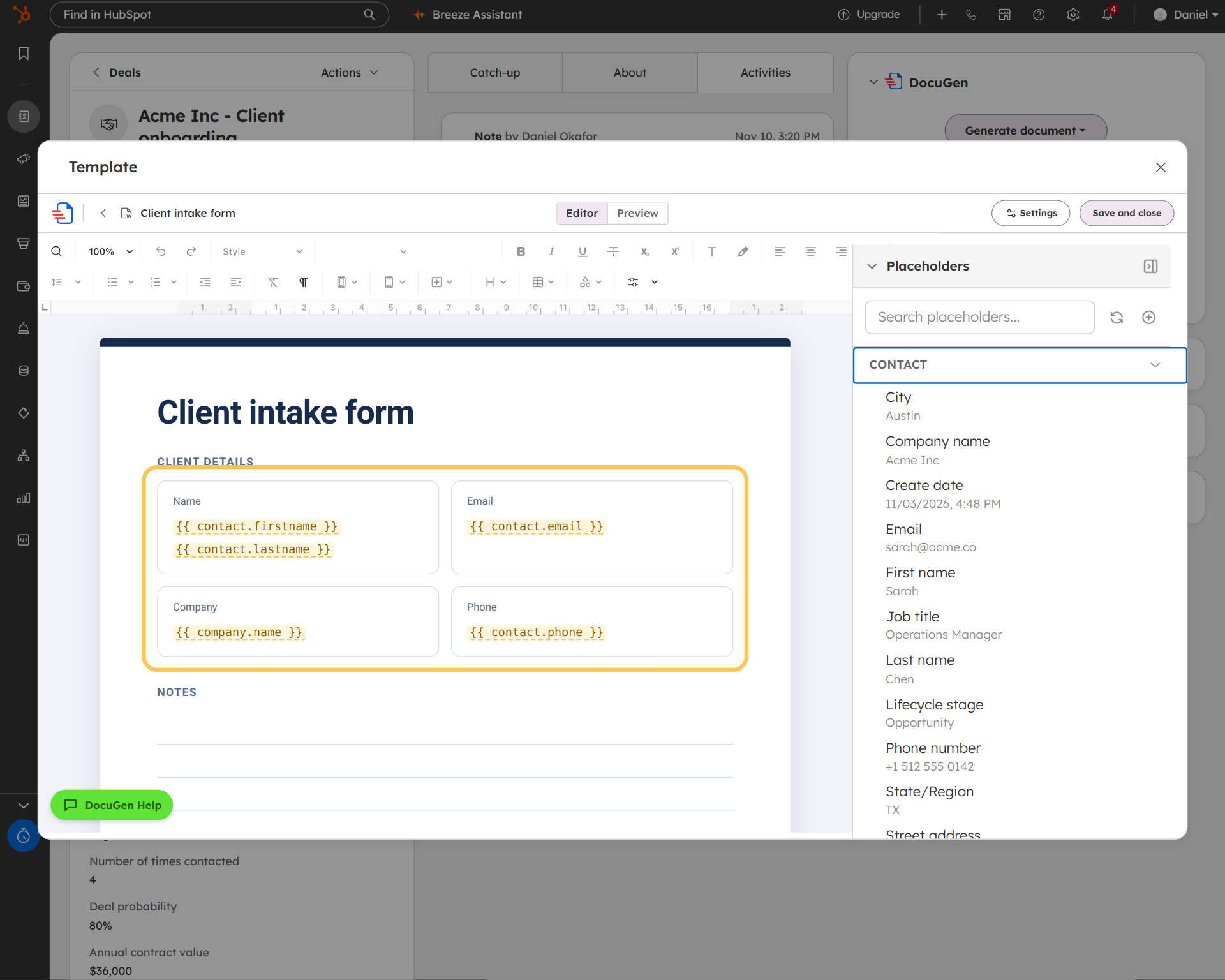
Create a document recipe for the intake form and upload your Word template (see Create a document recipe). Click Edit and open the Placeholders panel. The Contact group lists every contact property. Fields from the form appear in the same list.
In the example, the template has {{ contact.firstname }}, {{ contact.email }}, {{ contact.company }} and {{ contact.phone }} placed in a form layout.
2
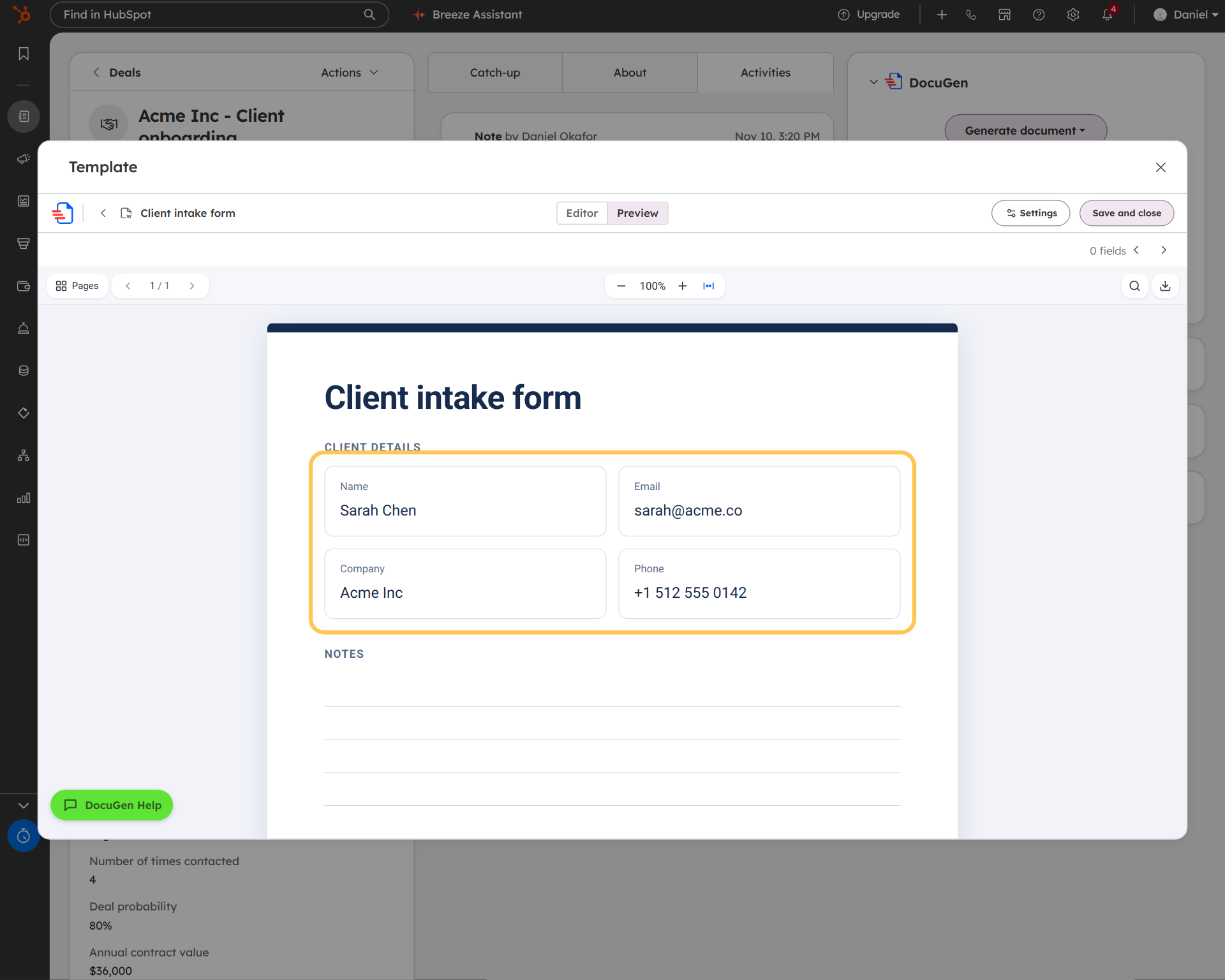
Open the contact in HubSpot. Click Generate on the DocuGen card and pick the intake form recipe. DocuGen fills every field from the contact and gives you a finished PDF.
In the example, the form shows "Sarah Chen," "sarah@acme.co" and "Acme Inc." The phone number is filled in too.
For teams that handle many submissions, DocuGen's Generate document action can also go in a HubSpot workflow. The workflow setup post covers how to add the action to a deal-based workflow, and the same approach works for contact-based workflows triggered by form submission.
DocuGen reads custom form fields too. HubSpot maps custom form fields to contact properties, and DocuGen can place any contact property into the template, standard or custom.
DocuGen for HubSpot: $0 a month for up to 400 documents, or up to 80 e-signed documents, per account per month, with unlimited users and no watermarks, as of November 2026.
Install DocuGen from the HubSpot Marketplace.
Yes. HubSpot saves custom form fields as contact properties. DocuGen lists every contact property in the Placeholders panel, including custom properties your form created. Place each property where the value belongs in your template.
Yes. Create a contact-based workflow in HubSpot that triggers on form submission. Add DocuGen's Generate document action to the workflow. Each time a contact submits the form, DocuGen generates the PDF from the contact properties.
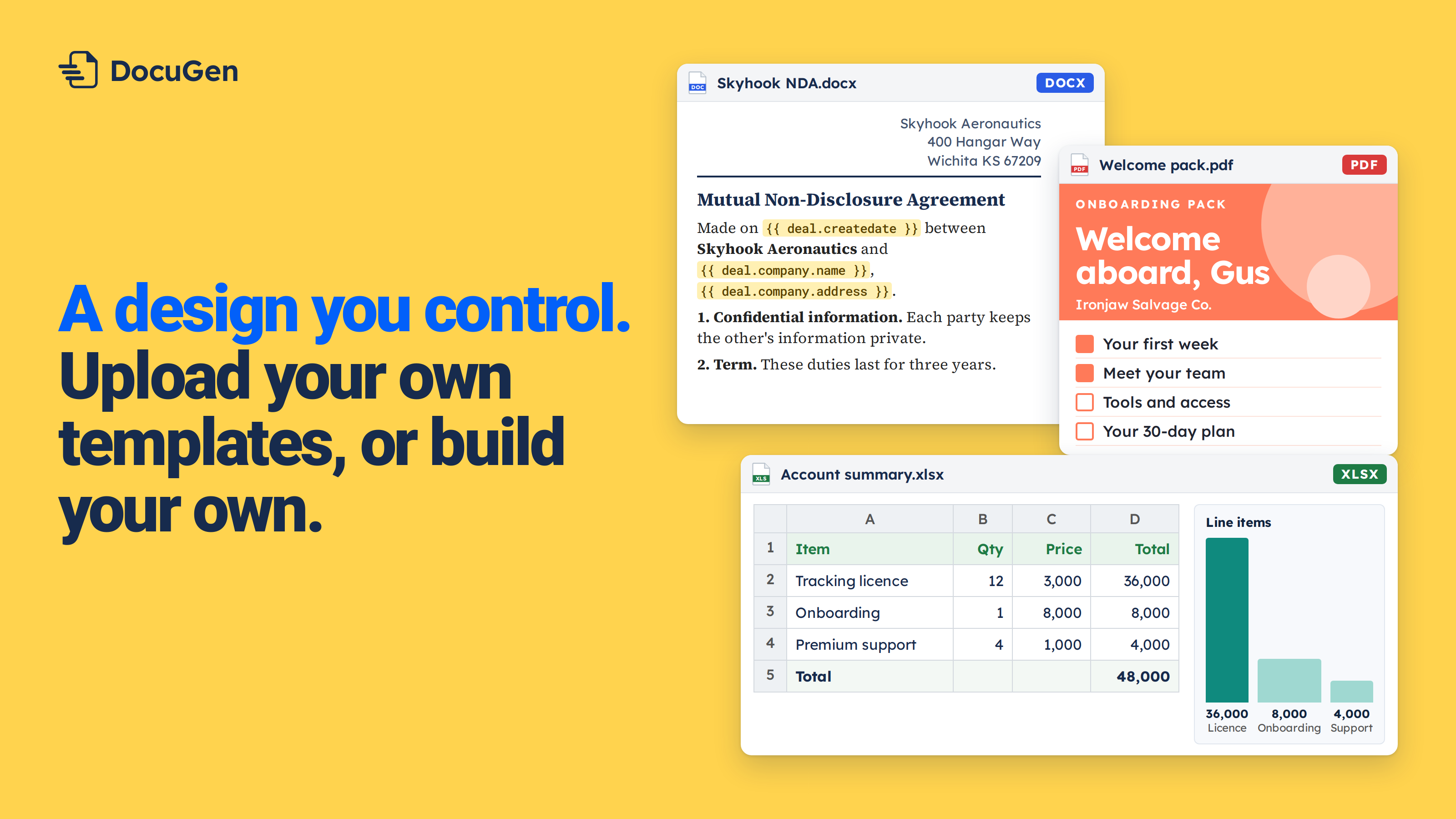
You upload a Word .docx template. DocuGen fills the placeholders and produces a PDF. Your layout, tables and logo stay as they are.
Yes. Add a signer to the recipe, place signature fields on the template and turn on e-signature. DocuGen generates the filled document and sends it for signing. Up to 80 e-signed documents per account per month on the free plan, as of November 2026.
Published 12 Nov 2026
· Updated 12 Nov 2026

 Add to monday
 Add to HubSpot