The HubSpot Documents tool tracks when a contact opens a file. DocuGen builds the file from deal data. Teams that need both use both.
The HubSpot Documents tool shares and tracks finished files. Upload a PDF or paste a link, send the file to a contact, and Documents tracks when the contact opens the file and how long they spend on each page. The file has to be ready before you upload. DocuGen is a document generation app on the HubSpot Marketplace that builds the file. Upload a Word template, place HubSpot properties where values belong, and DocuGen generates a finished PDF from any deal, contact, company, ticket or custom object. Teams that need open tracking build the document with DocuGen and share the finished PDF through the HubSpot Documents tool. Free for 400 documents per account per month, as of November 2026.
If you searched "hubspot documents vs files," HubSpot also has Files, a file manager for images and downloads. Documents tracks sharing and Files stores assets. DocuGen adds document generation: a Word template fills from the record and produces a finished PDF. The three features cover different stages — storage, generation and sharing.
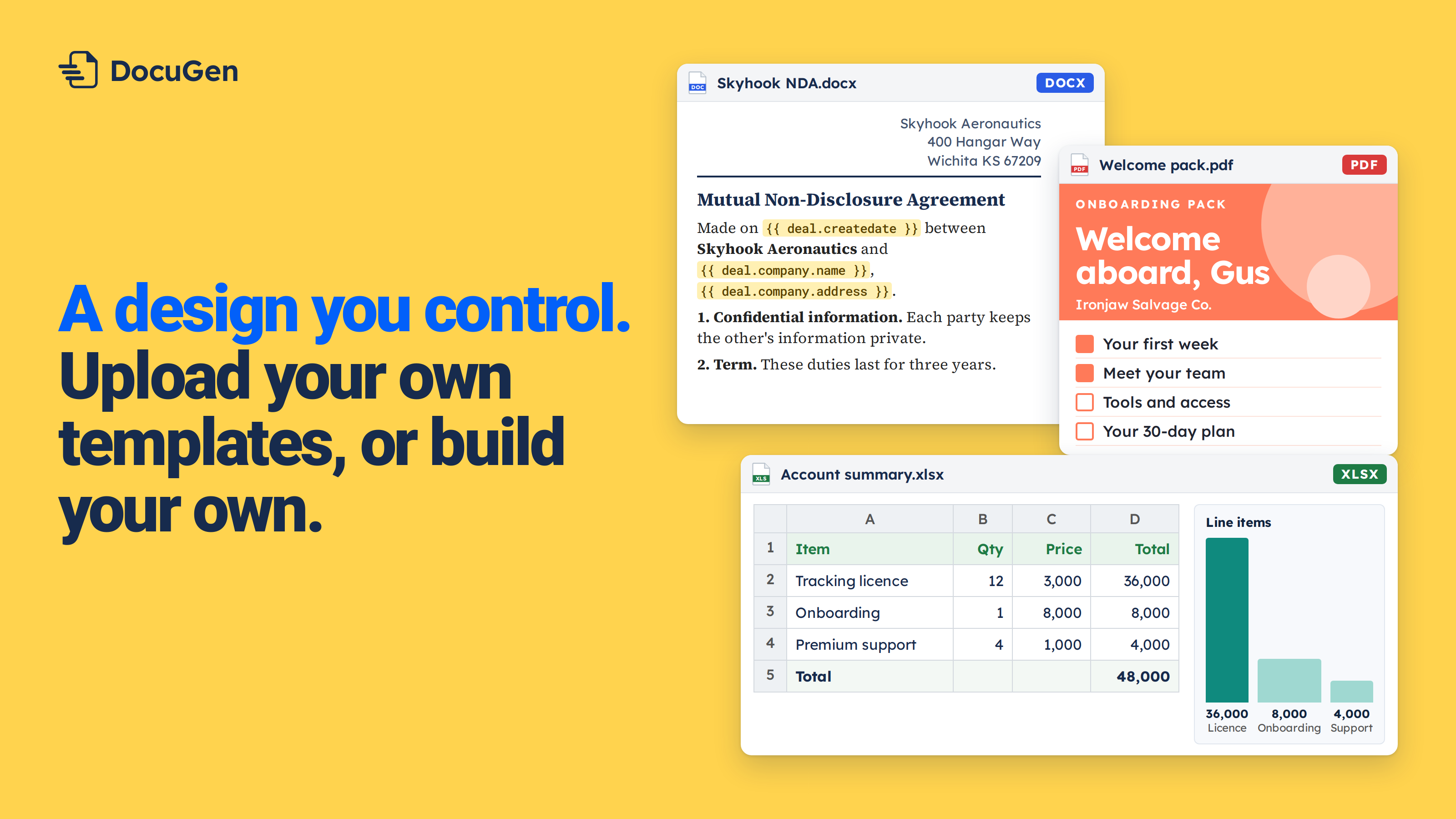
Upload a Word template, mark where properties go, click Generate on any record, and DocuGen reads every property and builds a finished PDF in the layout you set. The finished file can then be shared through HubSpot Documents for contact-level tracking.
DocuGen builds the file from HubSpot data. The HubSpot Documents tool shares and tracks the file after you send the file to a contact. Build with DocuGen, track with Documents.
Build a welcome letter recipe in DocuGen with deal and contact properties. Generate the welcome letter on a deal. DocuGen produces the PDF and saves the file to the deal record. Upload the finished PDF to the HubSpot Documents tool. Send the document to the contact. Documents tracks when the contact opens the file, how long they spend on each page, and whether they forward the file. The deal record holds both the generated document and the sharing analytics.
We'll walk through the full flow: create a recipe, upload a Word template, place properties and generate. The example uses a welcome letter on a deal for Corvane.
1
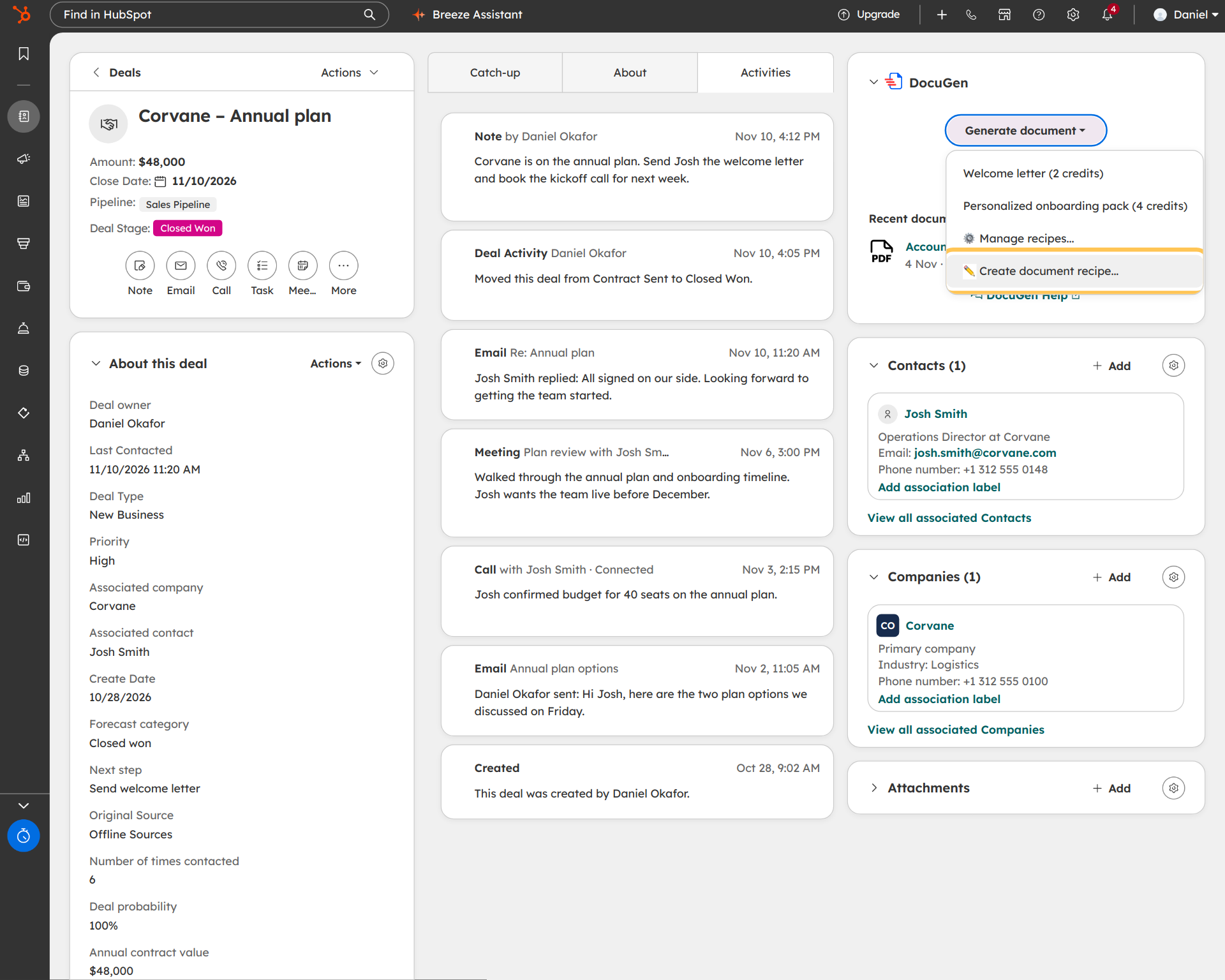
On any deal, click Generate document on the DocuGen card. Click Create document recipe at the bottom (see Create a document recipe). In the example, we're naming the recipe "Welcome letter."
2
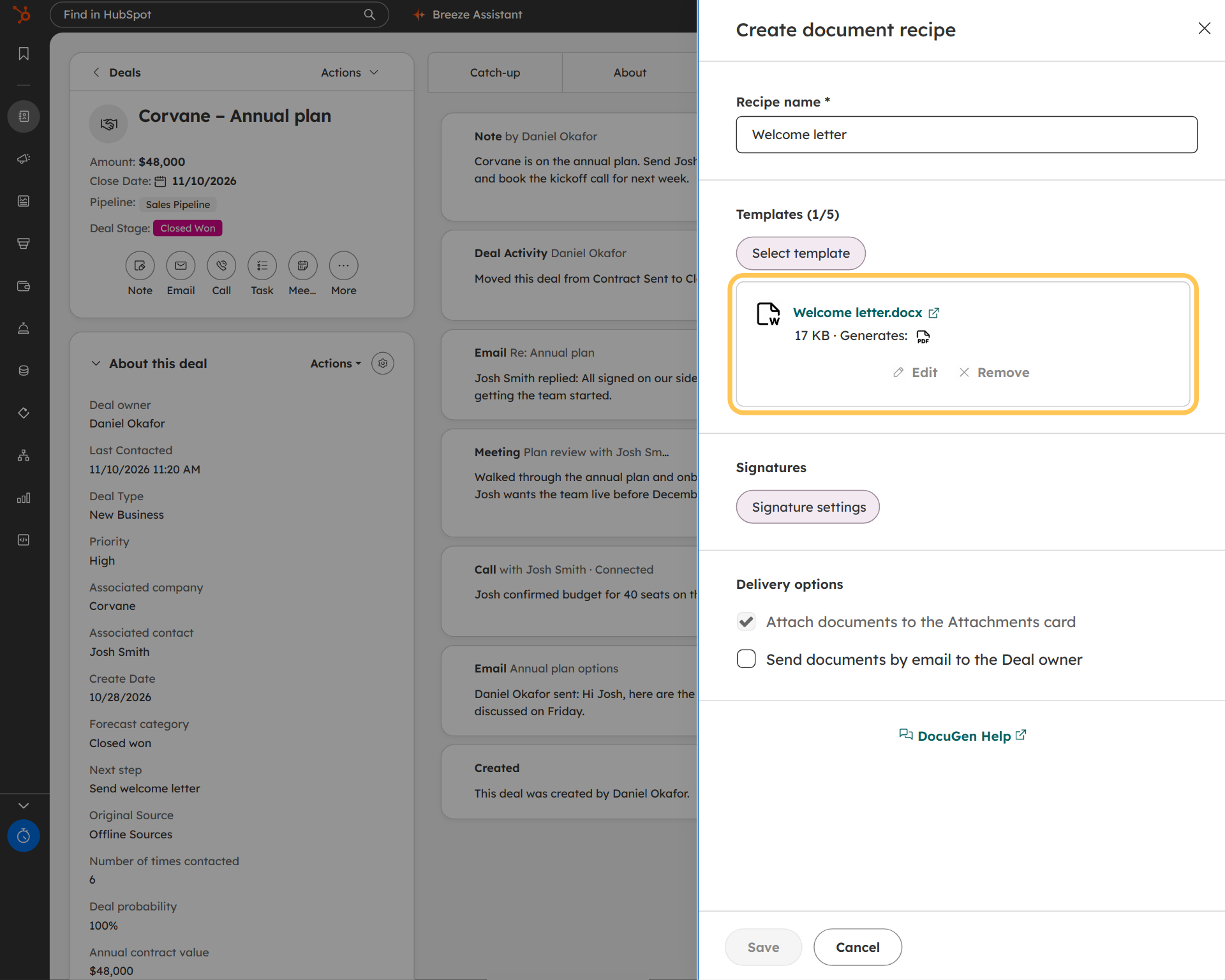
In the recipe panel, drag a .docx into the template area. The layout, logo and tables stay as they are. You can use the team's own Word file, not a vendor canvas.
In the example, the panel shows Welcome letter.docx (17 KB, Generates: PDF).
3
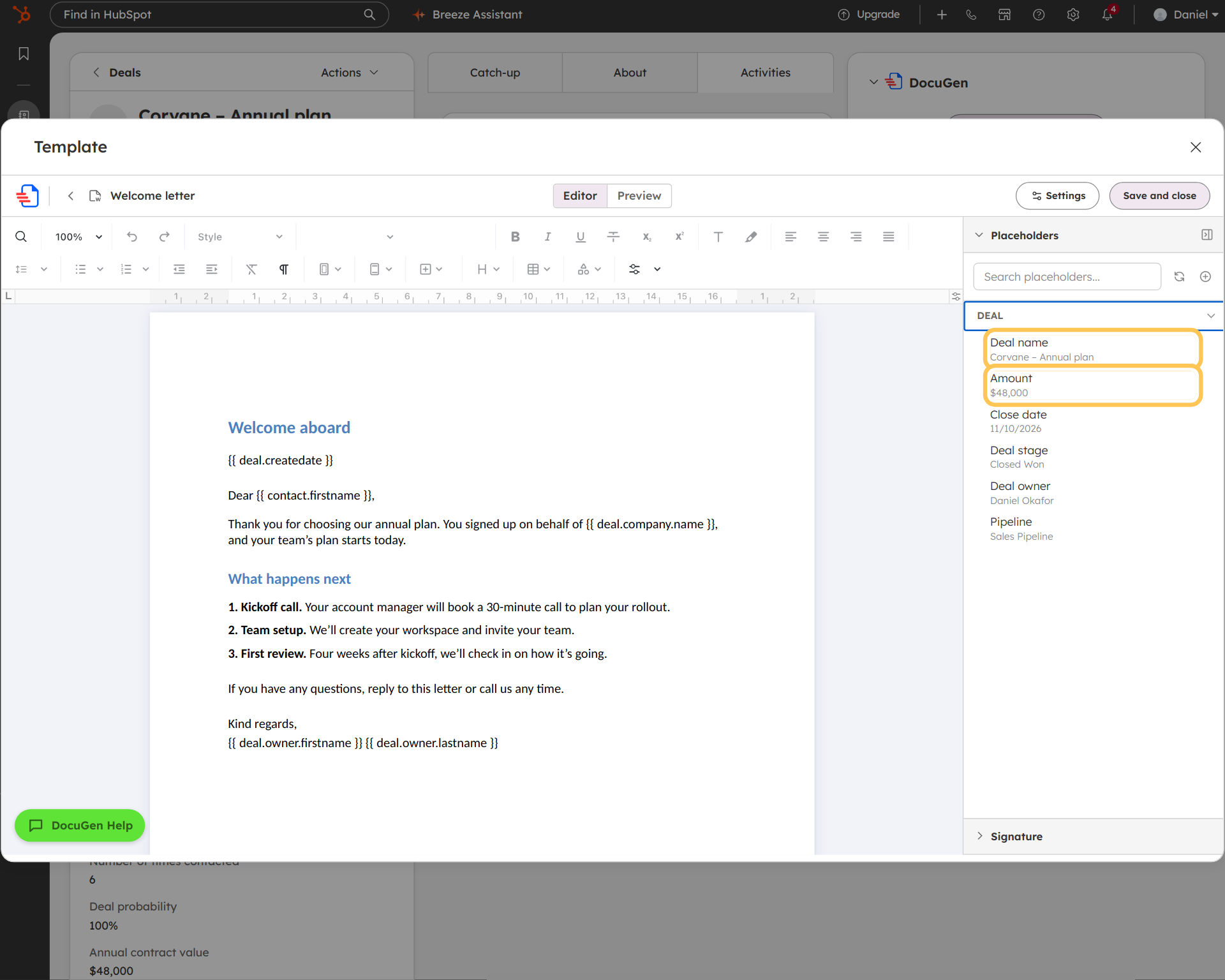
Click Edit on the template to open the editor. The Placeholders panel on the right lists every property group on the record: Deal, Owner, Companies, Contact and more (see Insert HubSpot properties into your documents).
Click a property name and DocuGen drops a tag into the document. In the example, the welcome letter uses {{ deal.contact.firstname }} in the greeting. {{ deal.company.name }} goes in the body. Standard, custom and line-item properties all work (see HubSpot custom properties in documents).
4
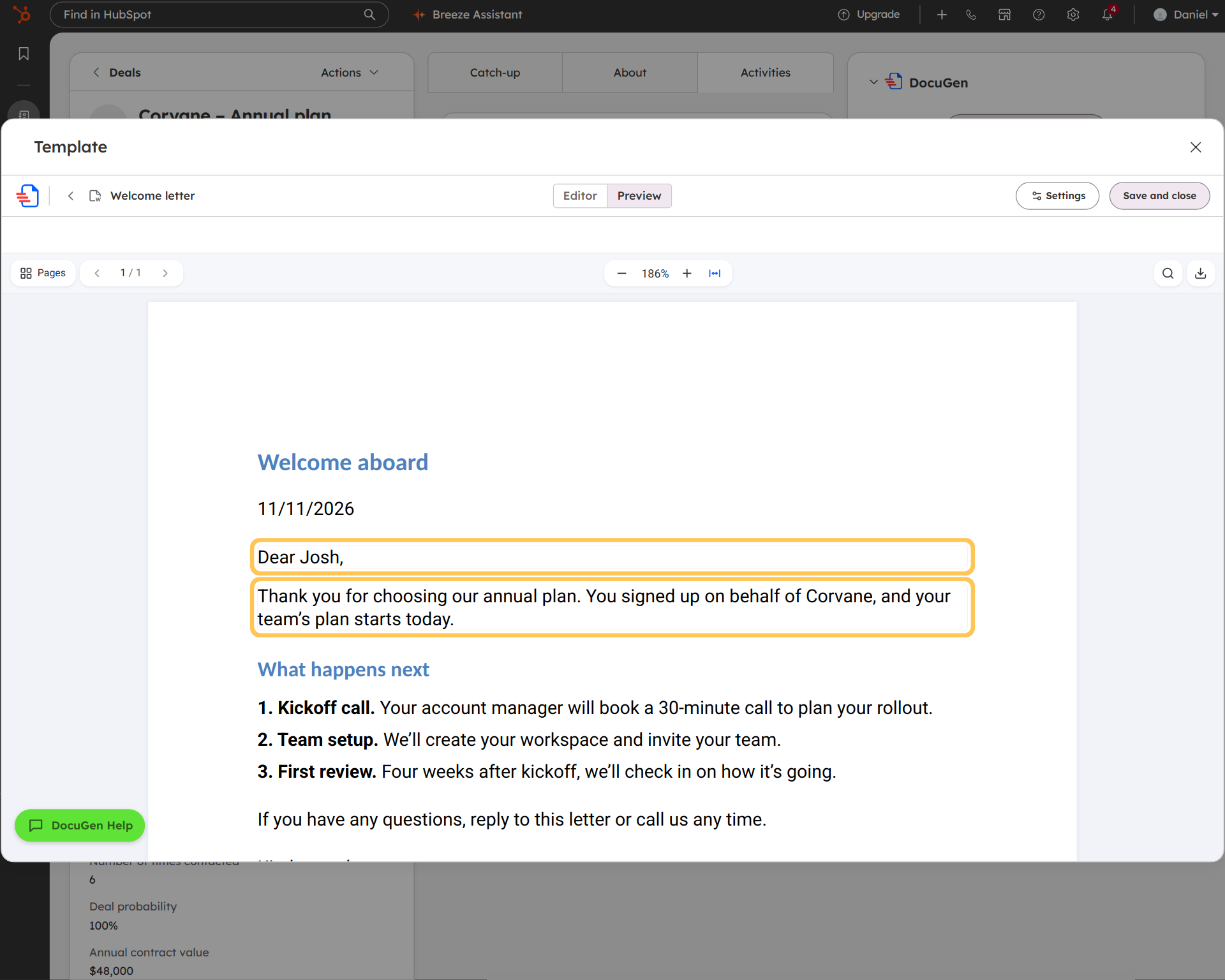
Click Preview. DocuGen fills every placeholder from the deal. In the example, the welcome letter reads "Dear Josh," and "on behalf of Corvane."
5
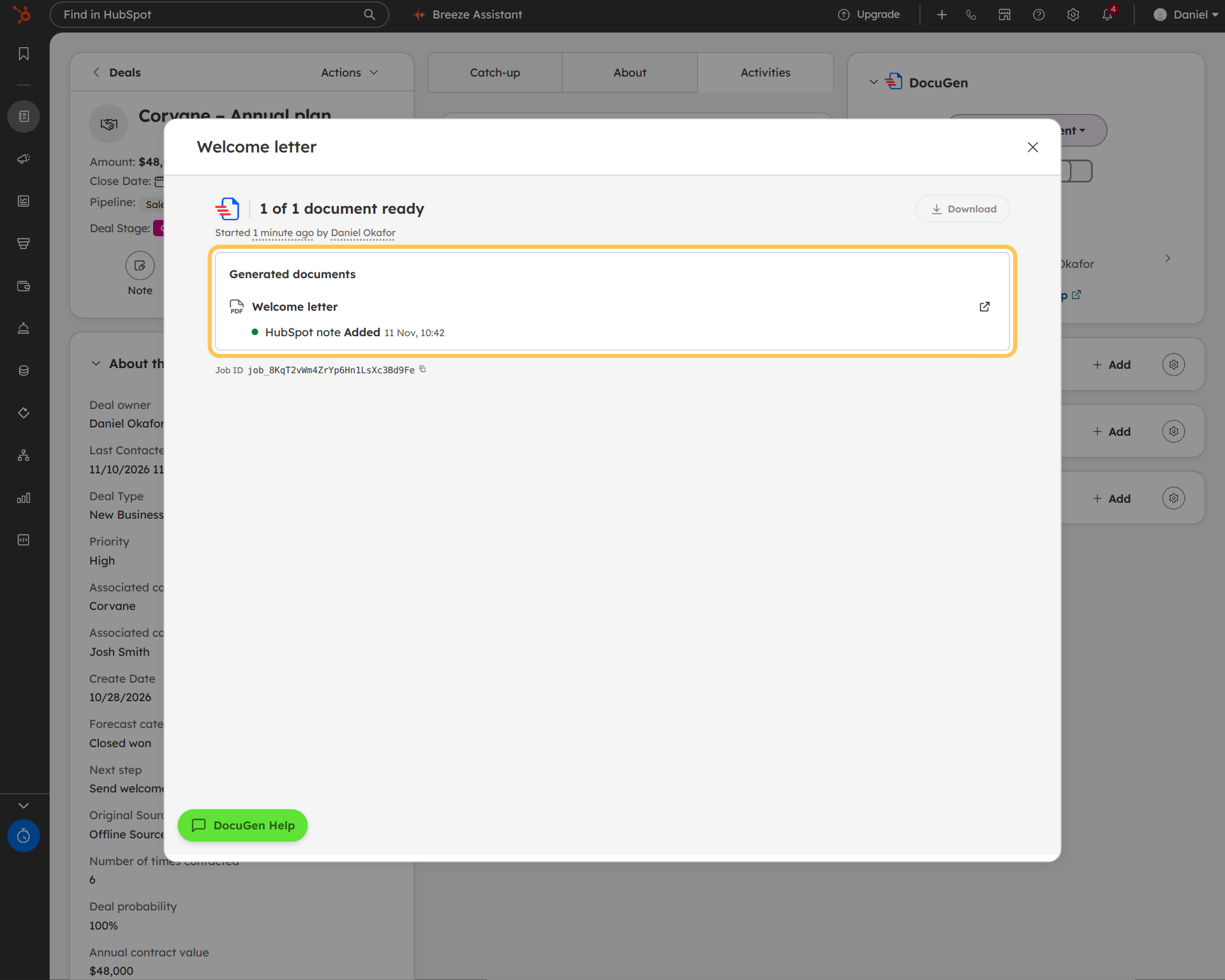
Back on the deal, click Generate document. Pick "Welcome letter." DocuGen builds the PDF and saves the file to the deal.
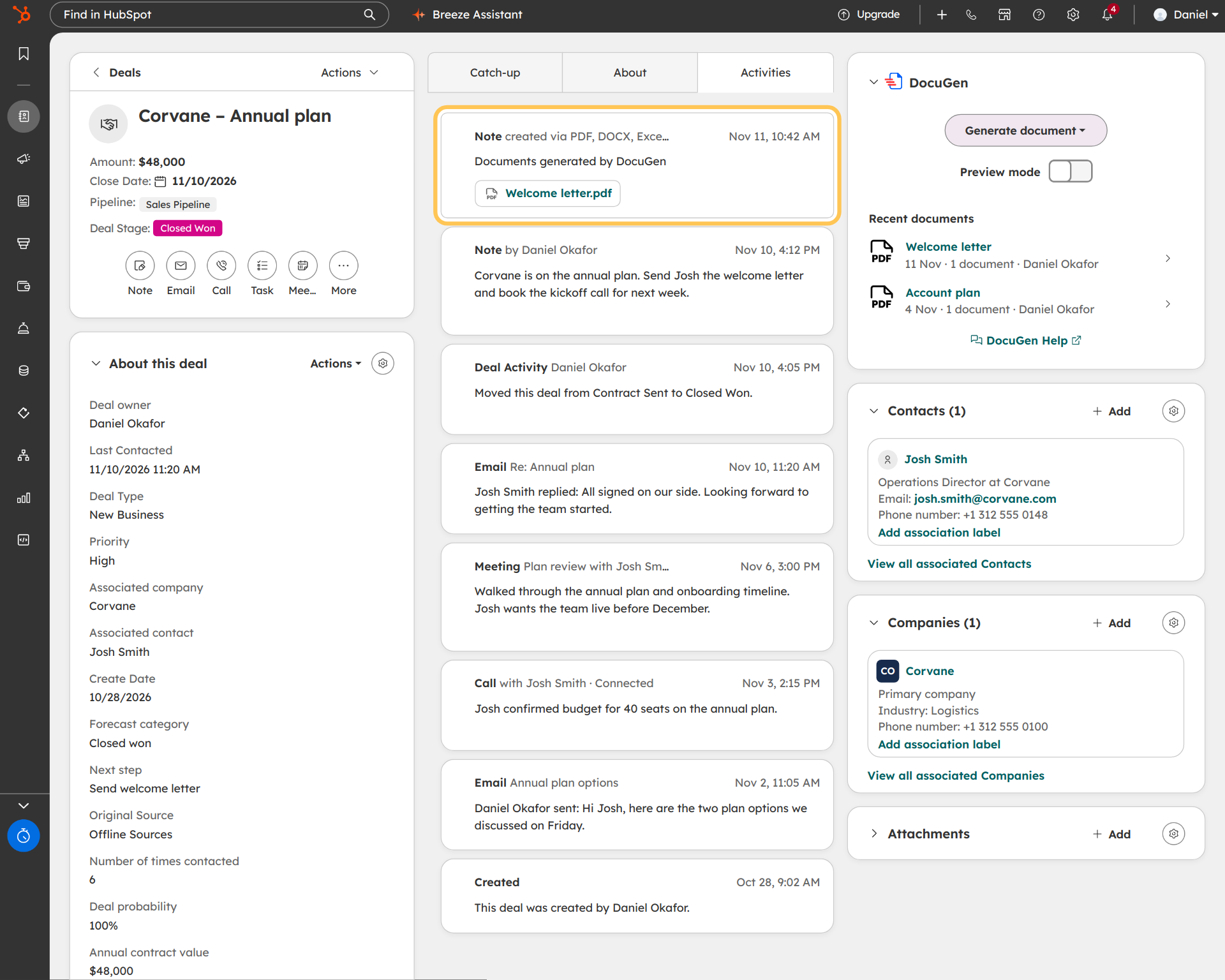
The welcome letter PDF appears on the deal's activity feed, attached to a note from DocuGen.
You can also generate documents from a HubSpot workflow, so an onboarding pack or welcome letter builds automatically when a deal reaches Closed Won (see generate documents from a HubSpot workflow).
DocuGen for HubSpot: $0 a month for up to 400 documents, or up to 80 e-signed documents, per account per month, with unlimited users and no watermarks, as of November 2026. Paid plans start at $99 a month for 1,000 documents, as of November 2026.
Install DocuGen from the HubSpot Marketplace and try generating from one deal.
Yes. The HubSpot Documents tool tracks when a contact opens a shared file. DocuGen builds the file from deal data. Some teams build the document with DocuGen and then share the finished PDF through Documents for open tracking.
No. DocuGen is on the HubSpot Marketplace and uses the HubSpot login. Every step happens on the deal, contact or company record.
Upload any .docx file. DocuGen keeps the layout, logos, tables and formatting from the original file. Place HubSpot properties where values belong, and DocuGen fills them on every document.
NDAs, welcome letters, onboarding packs, client intake forms, service reports, account reviews, and any document a team builds from HubSpot deal, contact, company or ticket data. On the blog, we also cover where HubSpot's native Quotes and Invoices features stop and how DocuGen extends HubSpot for other document types.
Published 12 Nov 2026
· Updated 12 Nov 2026

 Add to monday
 Add to HubSpot