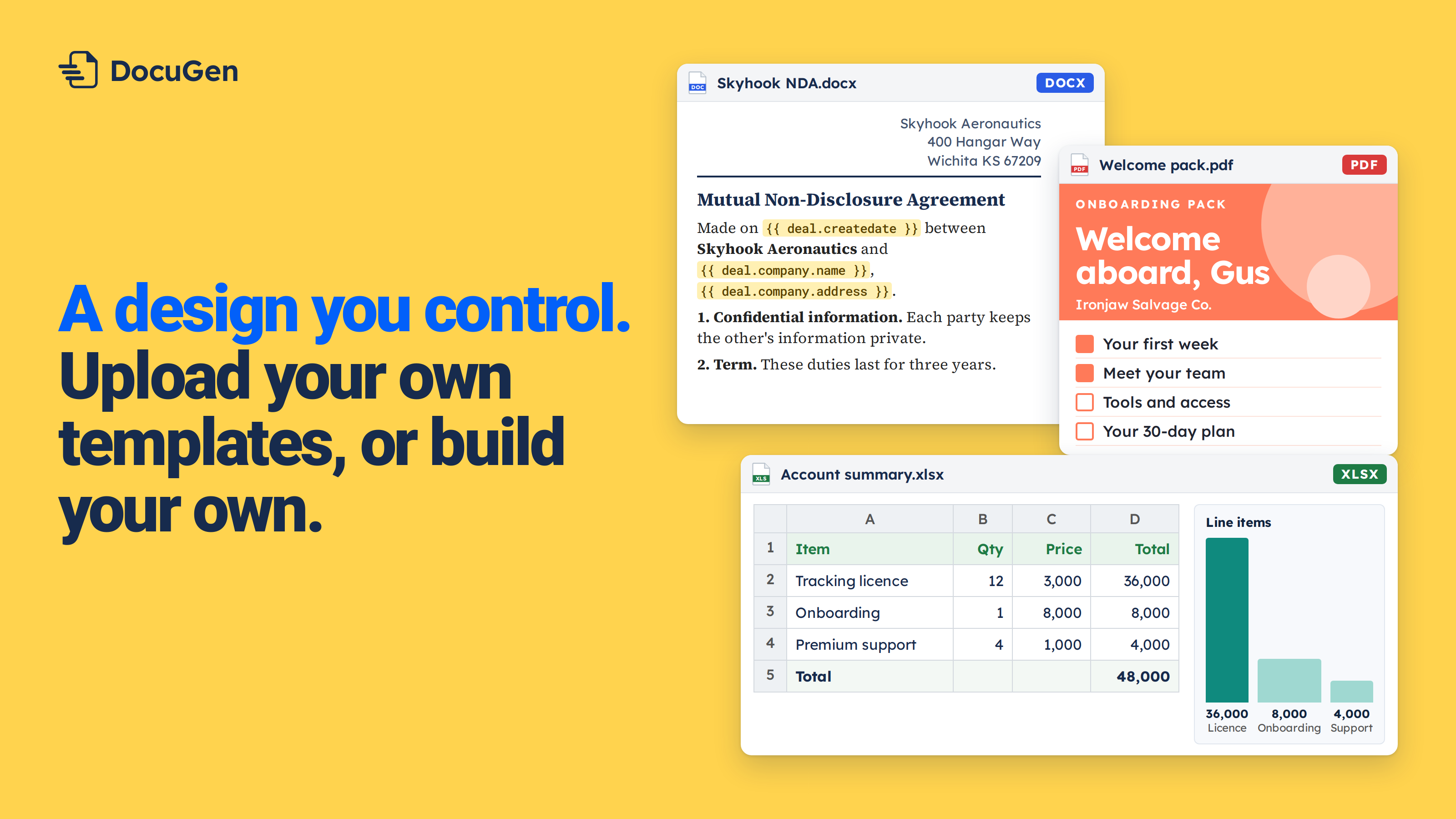
Say your team has an invoice template in Word. A client name, a project and totals live on a monday.com item. Right now someone opens the item and types each column value into the template by hand.
DocuGen fills the template from the item. Upload your Word file and tell DocuGen which columns go where. Click Generate. DocuGen reads every column from the item and gives you a finished PDF, with your layout and tables exactly as they are.
This post walks through the full setup: from adding DocuGen to a board, to one-click generation with a Button column.
Yes. DocuGen is a monday.com Marketplace app that takes your own Word template and maps monday.com columns to placeholders. Click Generate and DocuGen produces a finished PDF. You keep your layout, logo and tables. DocuGen fills the column values at generate time. The free plan covers 400 documents per account per month with a DocuGen watermark, as of November 2026.
1
1. Open your board in monday.com.
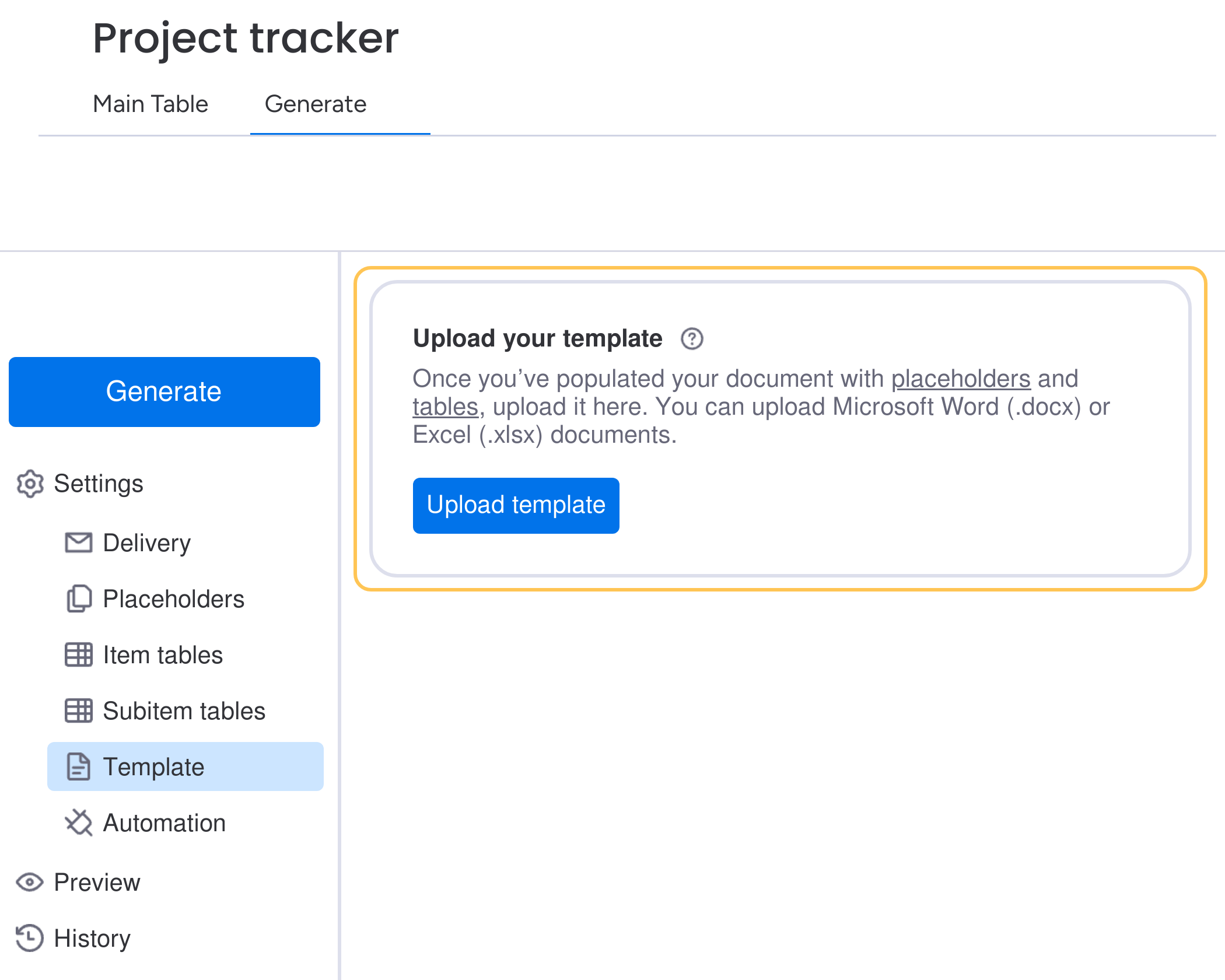
2. Click the + next to your board views and add a DocuGen Generate view. The view appears as a new tab beside Main Table.
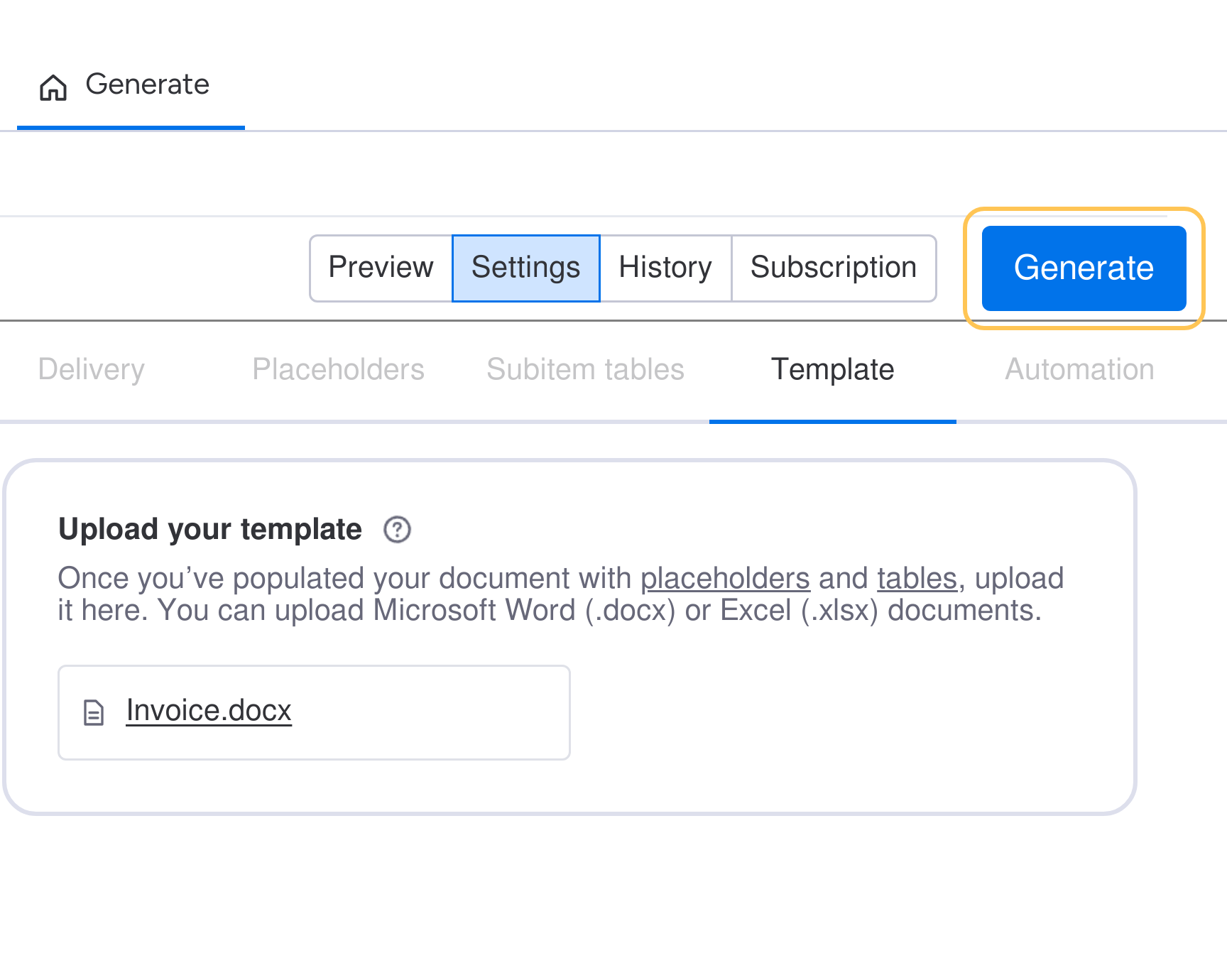
3. In the DocuGen sidebar, click Template under Settings. Upload the Word file your team uses today. An invoice works well here. Your layout, logo and tables stay as they are.
2
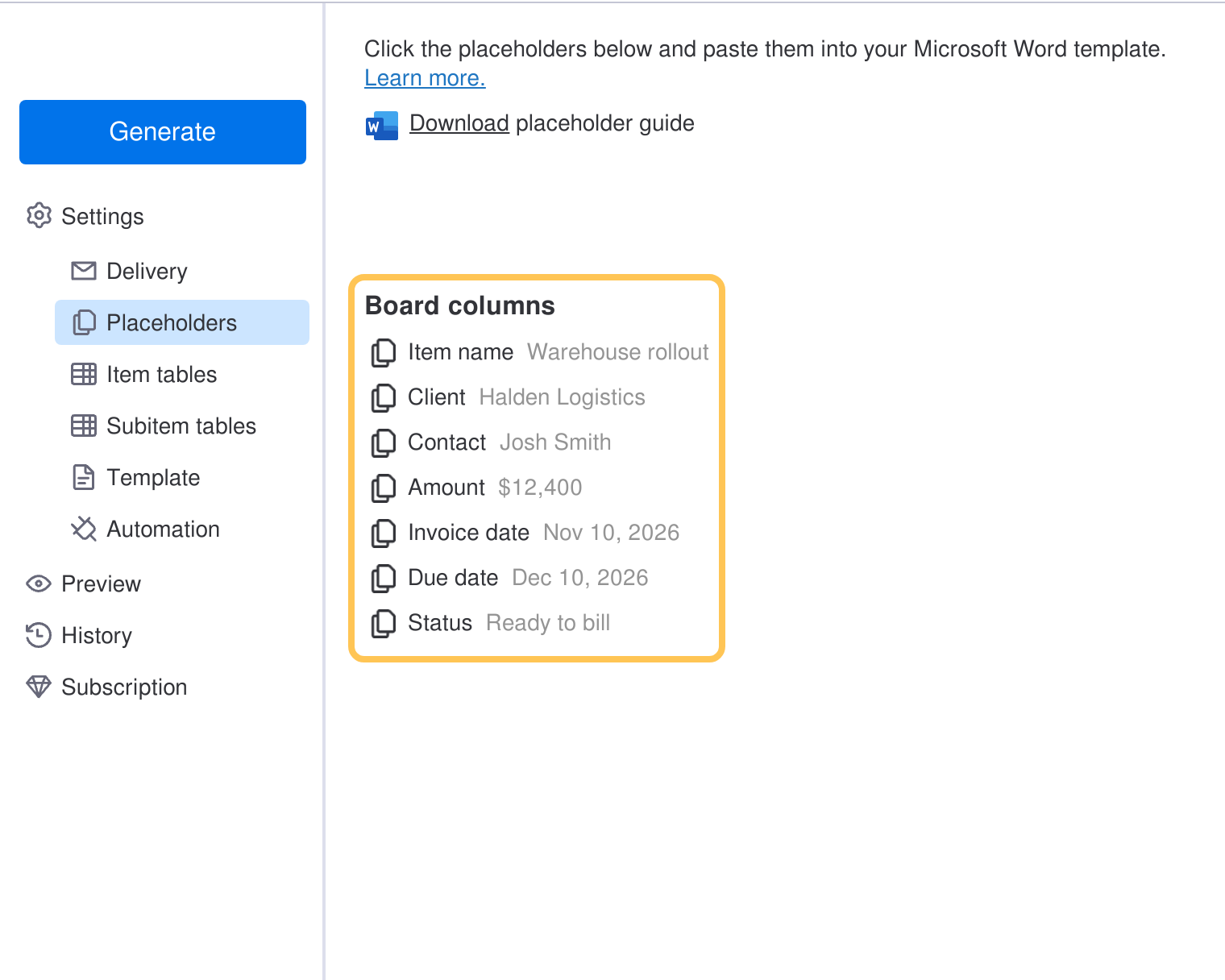
1. Click Placeholders in the Settings sidebar (see List of DocuGen placeholders). DocuGen lists every column on your board, ready to place in the template.
2. Place each column where the value goes in the template. The item name goes in the header, the client name on line one and the amount in the total row. DocuGen marks each spot as a placeholder.
3
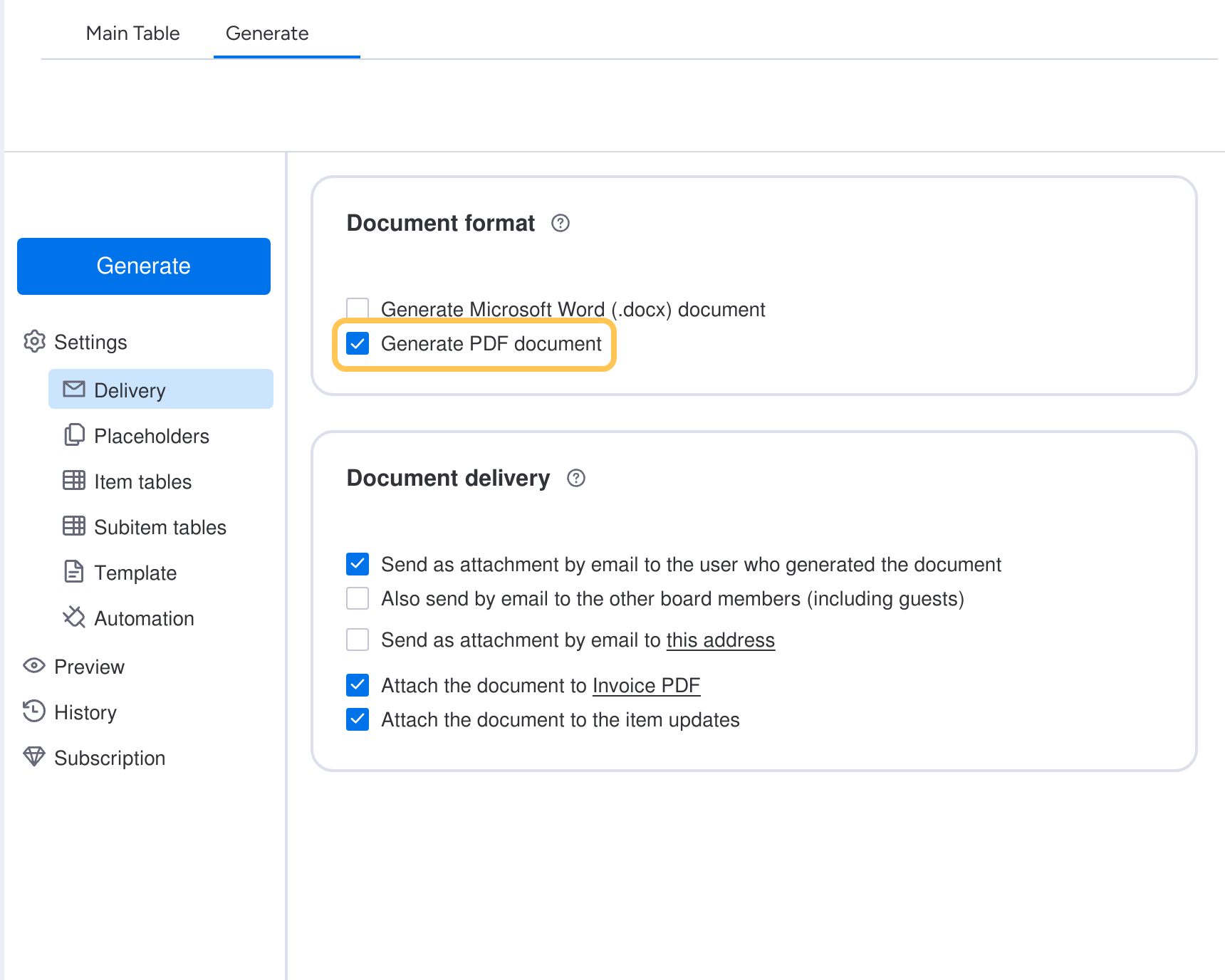
1. Click Delivery in the Settings sidebar (see Generate documents in PDF or .docx formats).
2. Under Document format, tick Generate PDF document. Tick Generate Microsoft Word (.docx) document if you also want the Word file.
3. Under Document delivery, pick where the finished file goes. Options include email to the person who clicked Generate, a Files column on the board or the item updates.
4
Open an item on your board and go to the DocuGen tab. Click Generate. DocuGen pulls the values into the template and shows the finished PDF.
Preview the PDF before you save. DocuGen fills every field from the item's columns. The client name, the project and the totals are in the right spots.
5
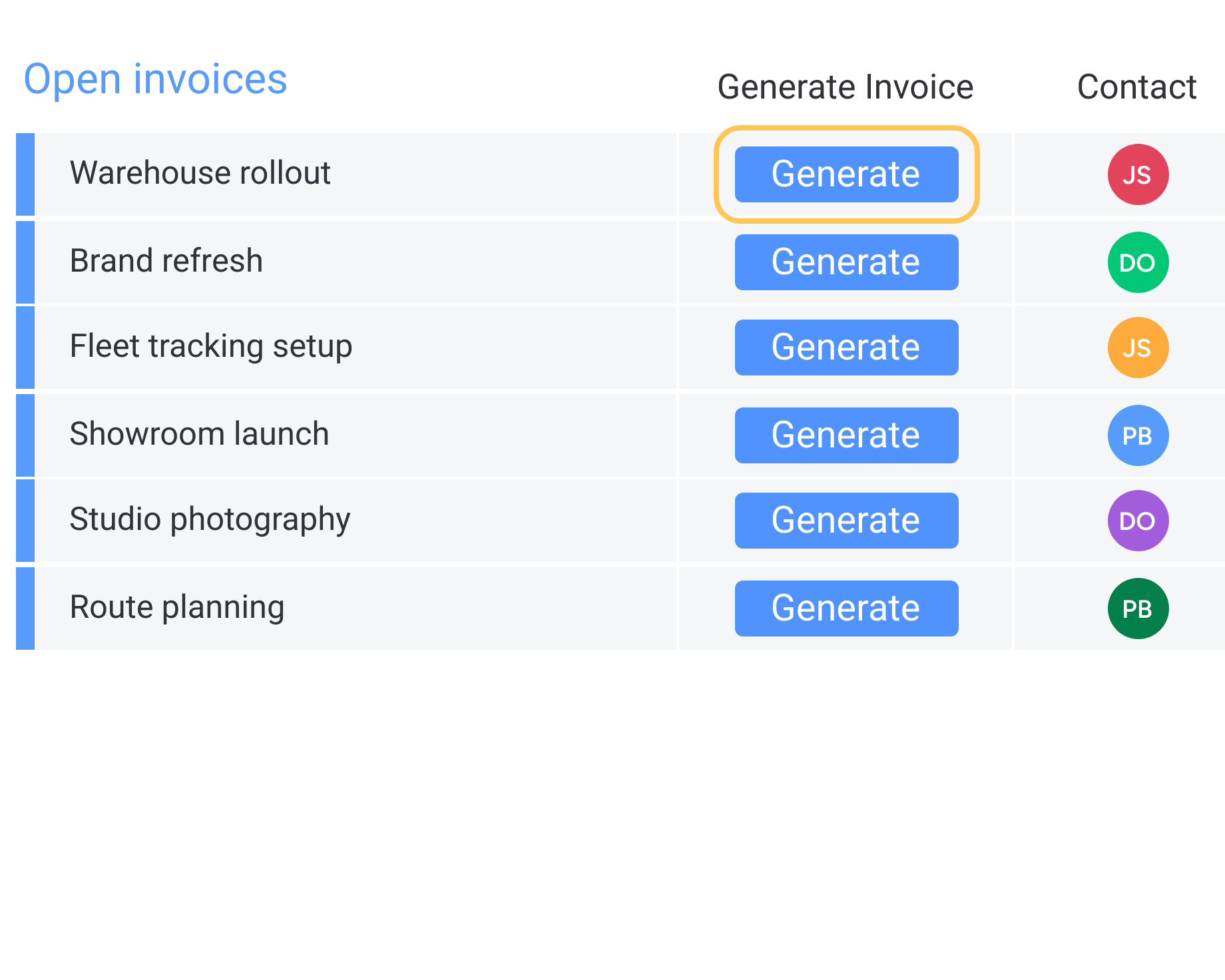
Add a Button column to your board and name the column "Generate Invoice" (see Generate documents with the click of a button).
Create a monday.com automation: "When Generate doc clicked, generate doc." Select the DocuGen board view you set up.
Click the button on any item. DocuGen generates the invoice PDF from the item's columns with one click.
As of November 2026, the free plan covers 400 documents per account per month with a DocuGen watermark. Each signature envelope counts as five documents. Paid plans remove the watermark: Basic at $25 a month (billed annually) for 200 documents, Standard at $48 a month for 400 documents, and Enterprise at $90 a month for 1,000 documents and above. See plan features for the full comparison.
DocuGen works with HubSpot too. Teams on both platforms can generate documents from HubSpot deals, contacts, tickets and companies with the same app. The HubSpot custom properties post covers how DocuGen handles custom fields, and the HubSpot workflow post shows how to add document generation to an automation.
For monday.com setup details, the monday.com Marketplace listing has screenshots and install instructions.
Install DocuGen from the monday.com Marketplace and generate your first document from an item.
Yes. Upload the .docx with your layout and tables as they are. DocuGen adds placeholders for monday.com columns and fills the values at generate time.
Yes. DocuGen reads subitem columns and fills them into a table in your template. Each subitem row gets its own line in the document.
Yes. Add a Button column or a status-change automation. DocuGen generates the document each time an item reaches the status you choose.
DocuGen can produce PDF and Word .docx from the same template. Tick the formats you want on the Delivery page. You can also send the file by email or attach the document to the item's Files column.
Published 12 Nov 2026
· Updated 12 Nov 2026

 Add to monday
 Add to HubSpot