Your legal lead needs to see a document before the client gets a signing link. Today that can mean forwarding the document to legal by email, then waiting for a reply.
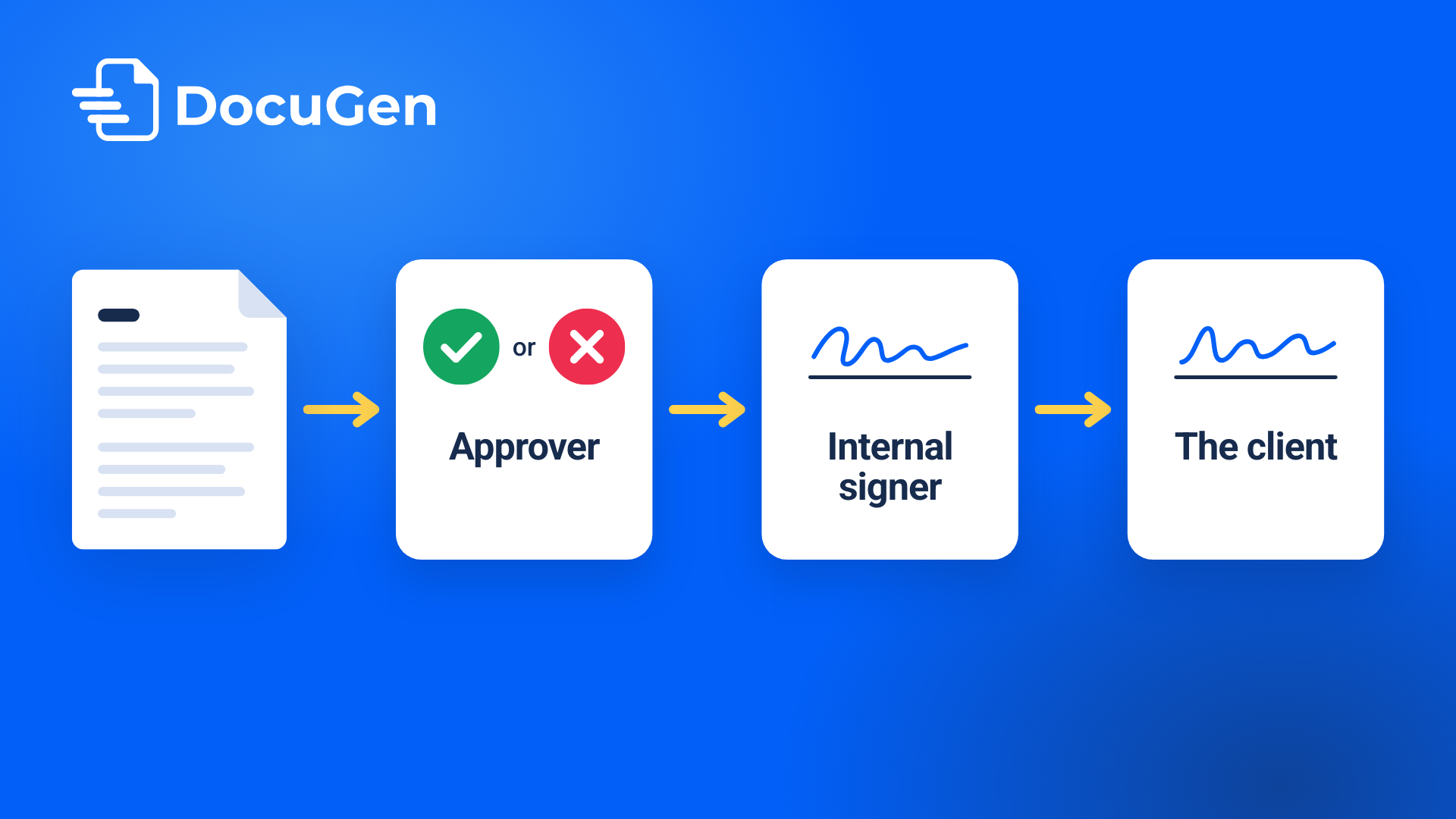
DocuGen puts the approval inside the signing order on a HubSpot deal. Add legal as the first signer with no signature fields. Without fields, legal can only approve or void. Turn on sequential signing and legal sees the NDA before anyone else. Once legal approves, the next signer gets the document automatically. The whole flow stays on the deal record, with no email threads and no separate tools. DocuGen is free for up to 80 e-signed documents per account per month, as of November 2026.
An NDA approval workflow in HubSpot keeps the review inside the deal, not in an email thread. DocuGen uses the signing order to route the document. Legal goes first with no fields and can only approve or void the NDA. Sequential signing means nobody else sees the document until legal finishes.
We'll set up an NDA approval below. The same signing order works for any document a team needs reviewed before sending, including welcome letters and onboarding packs.
1
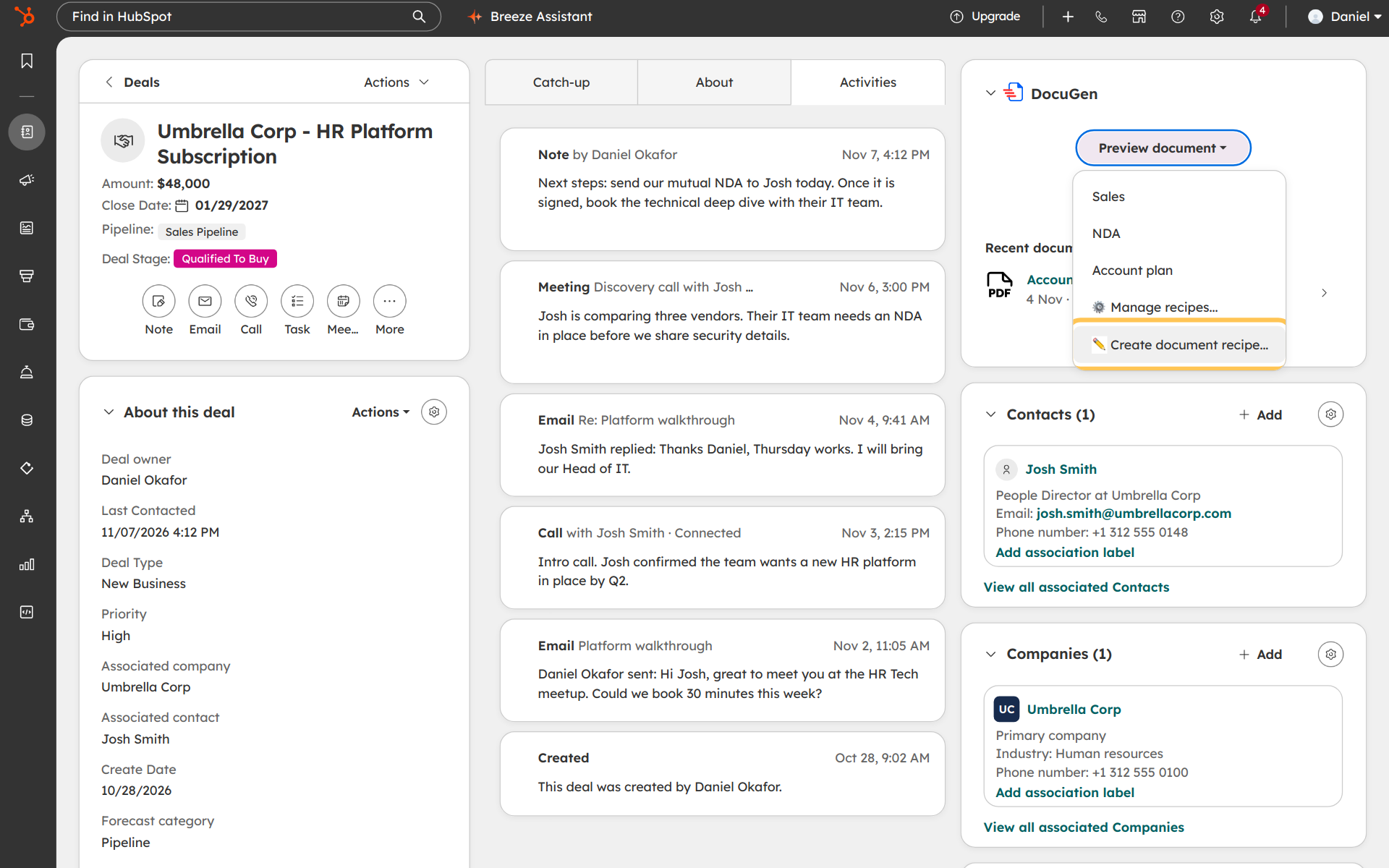
On a deal, open the Generate document menu on the DocuGen card. Click Create document recipe at the bottom (see Create a document recipe on the support site for the full walkthrough).
2
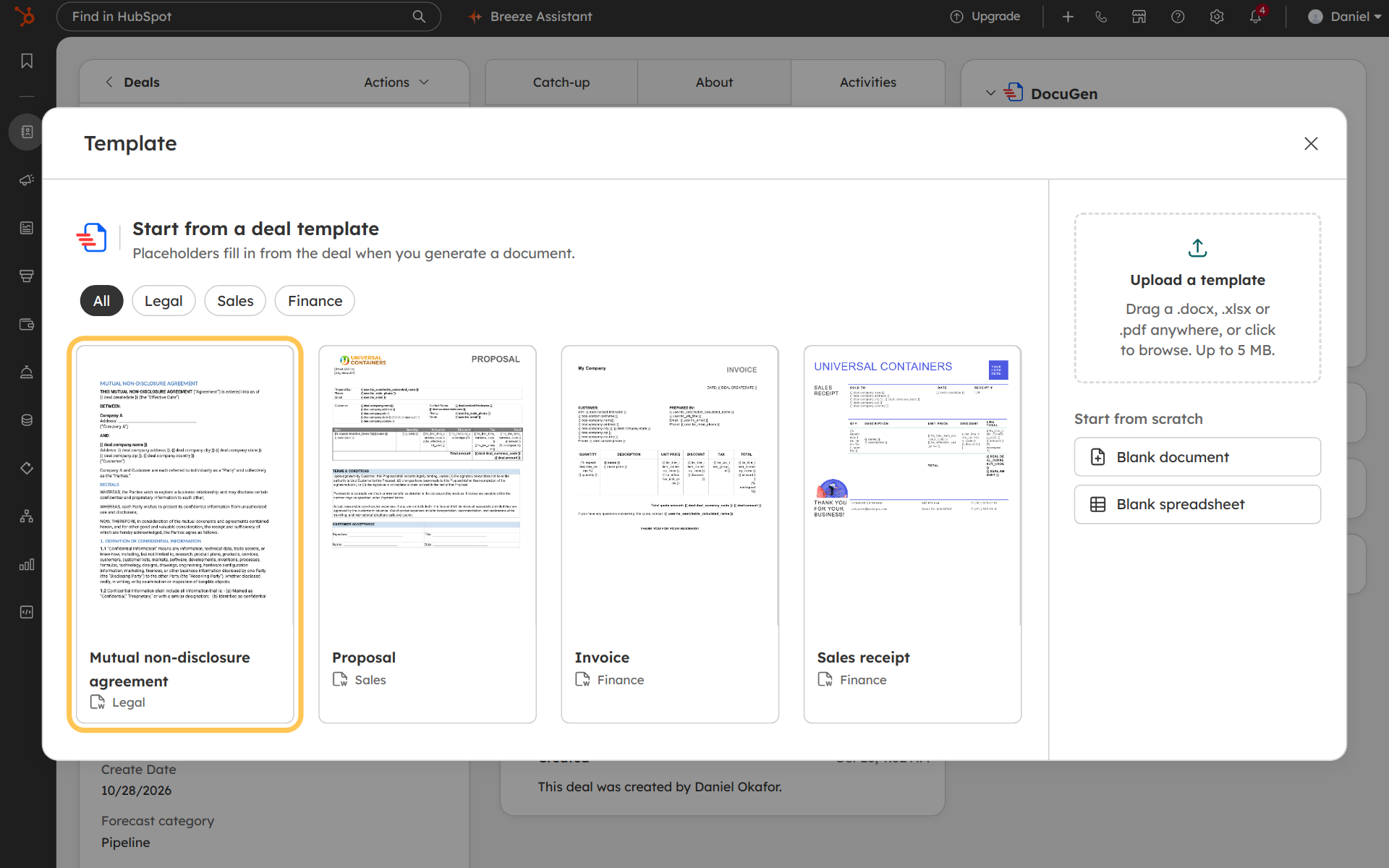
Pick a template from the gallery. Categories include Legal and Sales, or you can drag your own .docx in. You can use the team's own Word template for NDAs, welcome letters, or any document the team sends (see HubSpot Documents tool vs DocuGen for a full recipe walkthrough).
In the example, we're picking the Mutual non-disclosure agreement.
3
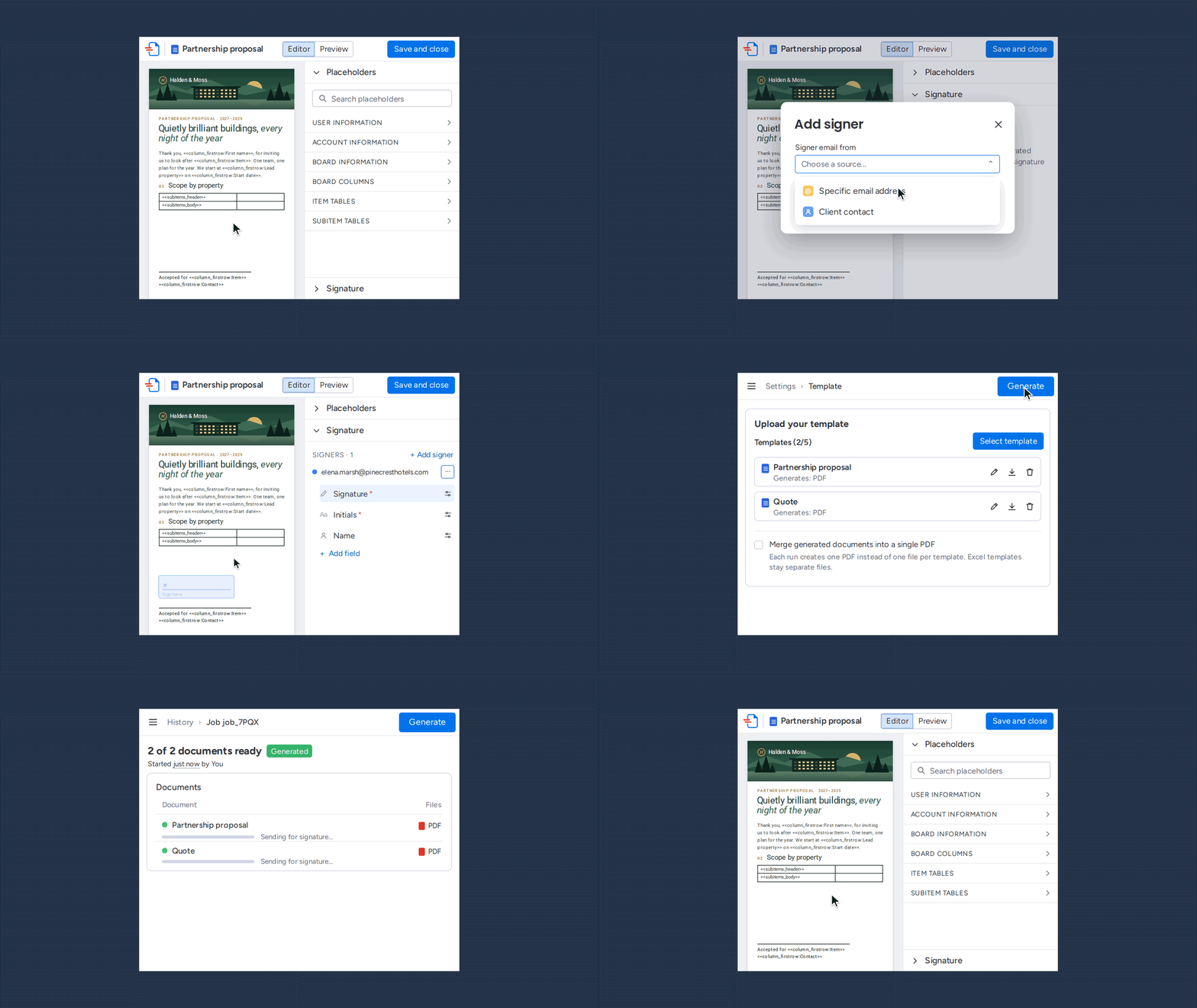
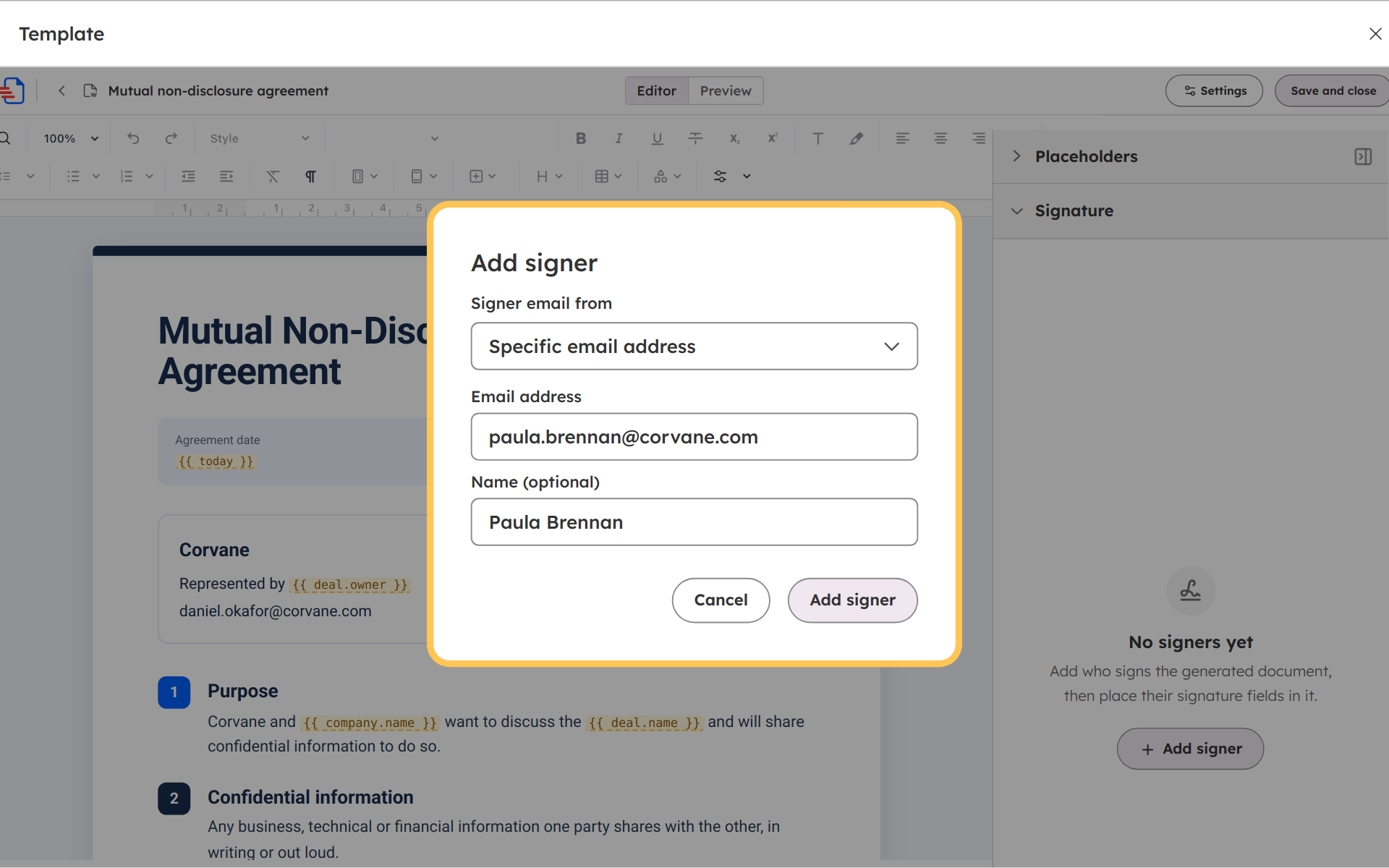
Click Edit on the document and open the Signature panel. Click + Add signer and pick Specific email address. Type the approver's email. For signer sources and options, see Define the signers.
In the example, Paula Brennan is the approver. Paula has no signature fields. With no fields, Paula can only approve or void the document.
4
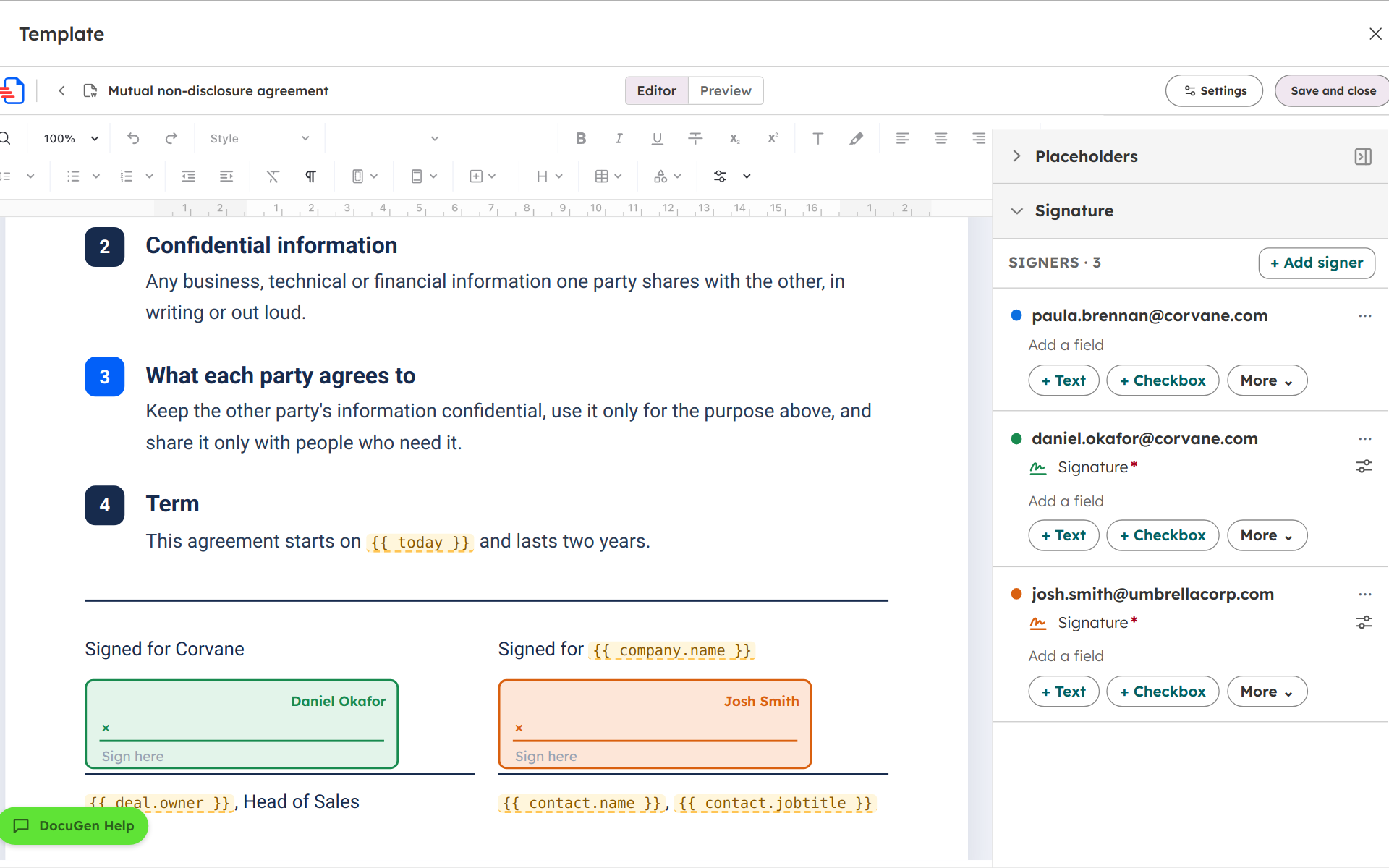
Click + Add signer again to add a company signer and the client. Place a Signature field where each person signs. Put the cursor where the signature belongs and click Signature in the panel.
In the example, Daniel Okafor and Josh Smith each get a signature box at the bottom of the NDA. Each signer has a different colour in the panel and on the signature box. Click Save and close.
5
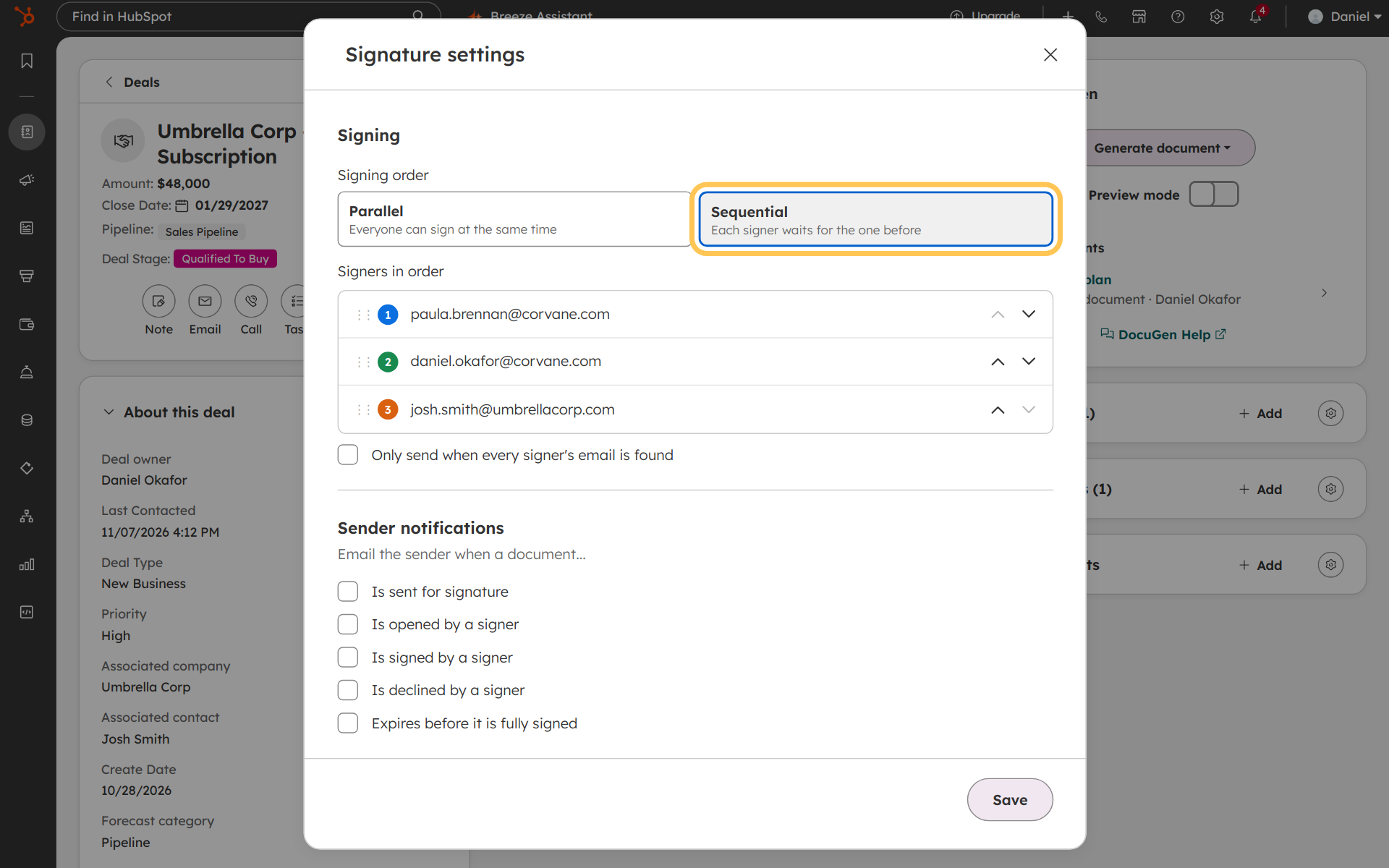
In the recipe, click Signature settings and pick Sequential (see Manage signature settings). Each signer waits for the one before. Use the arrows to set the order.
In the example, Paula is first (she approves), Daniel signs second and Josh signs last. Click Save. If you need placed signature fields with more control, see what the HubSpot e-signature limit means.
6
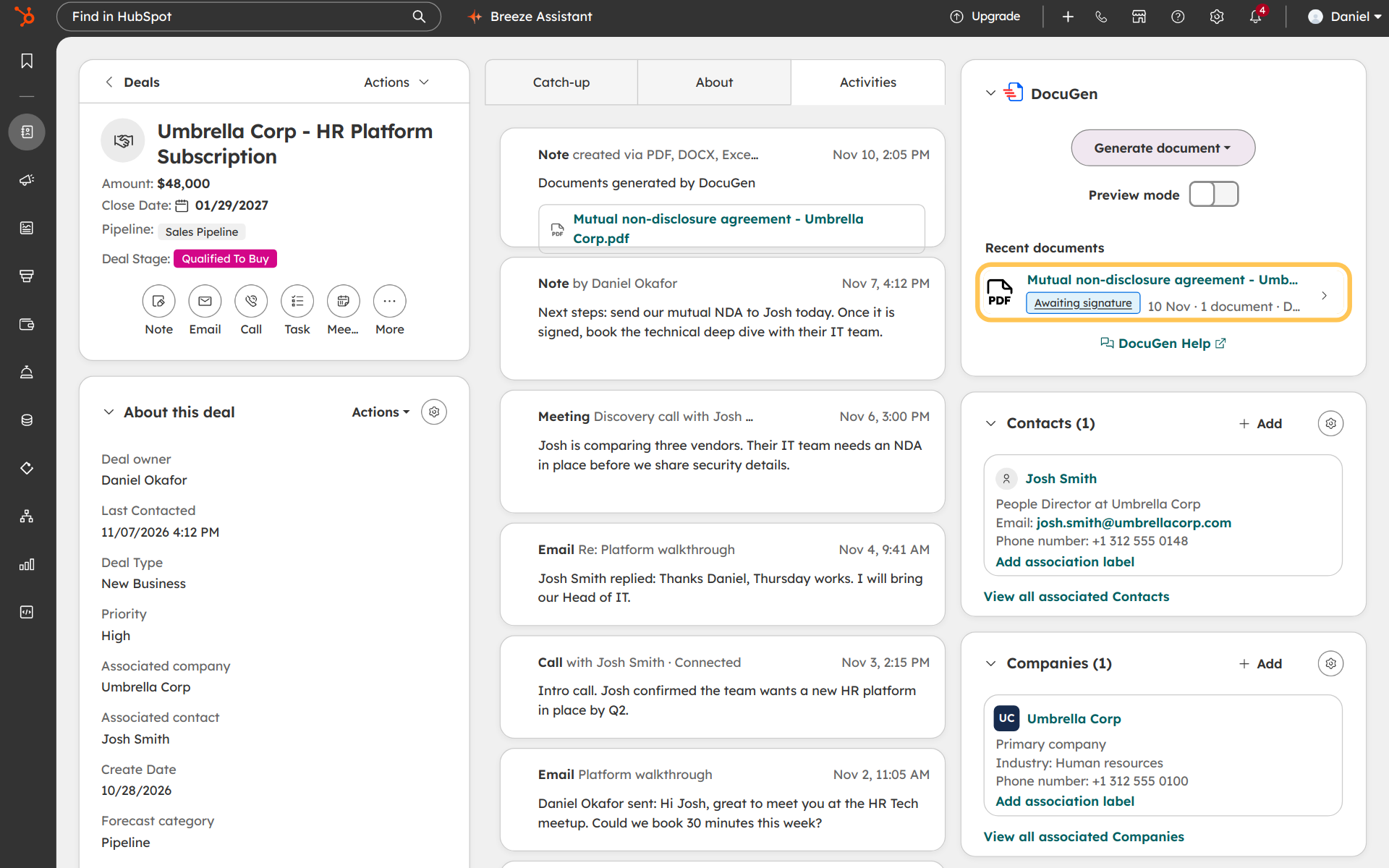
Back on the deal, toggle Preview mode off and click Generate document. Pick the NDA recipe.
The NDA appears on the DocuGen card and gets attached as a new note on the timeline. Click the coloured tag under the document name to track progress.
7
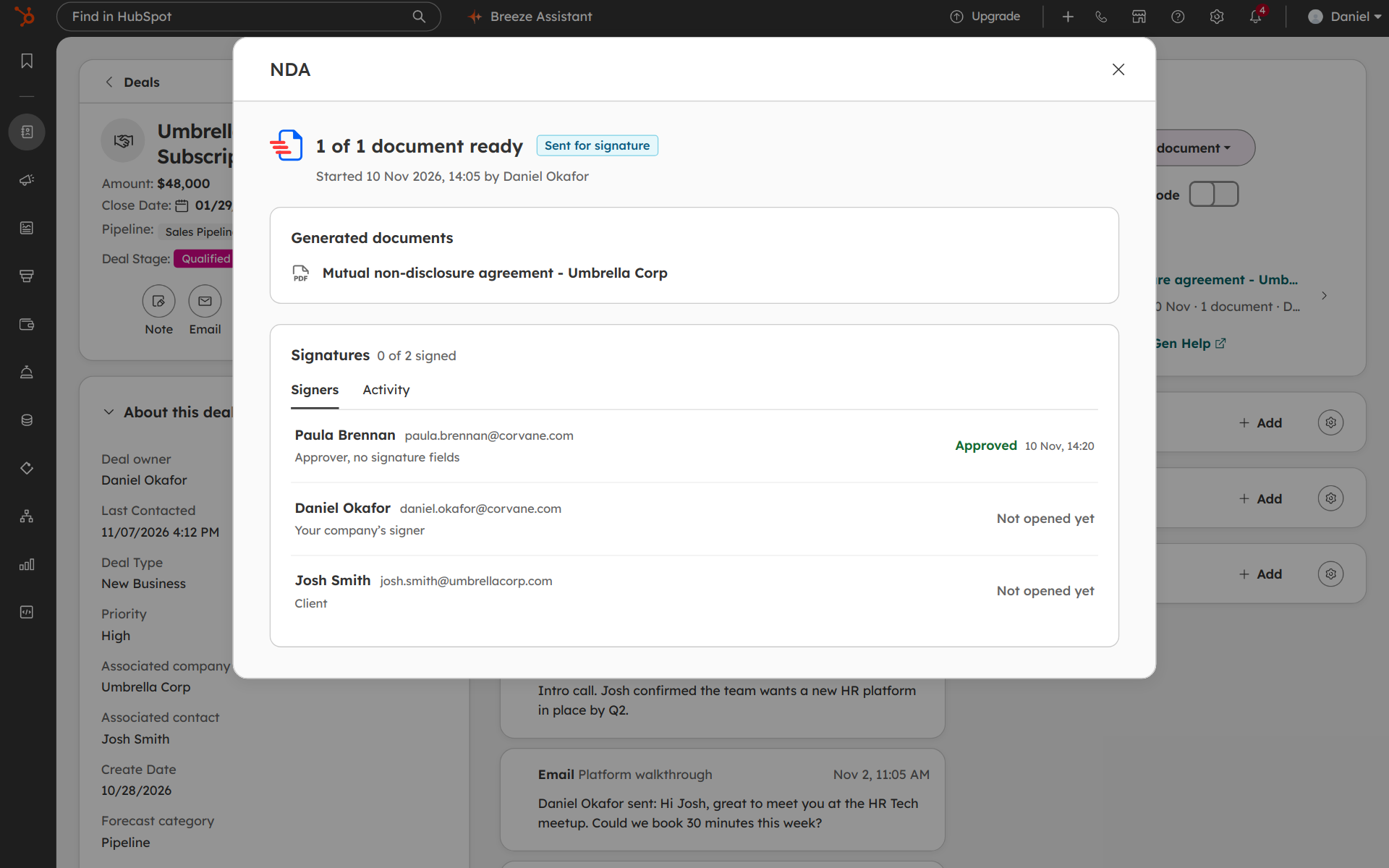
Paula receives the NDA first by email. Paula reviews the document and approves the envelope.
In the example, Paula approved while Daniel and Josh are both "Not opened yet" because they're waiting their turn.
8
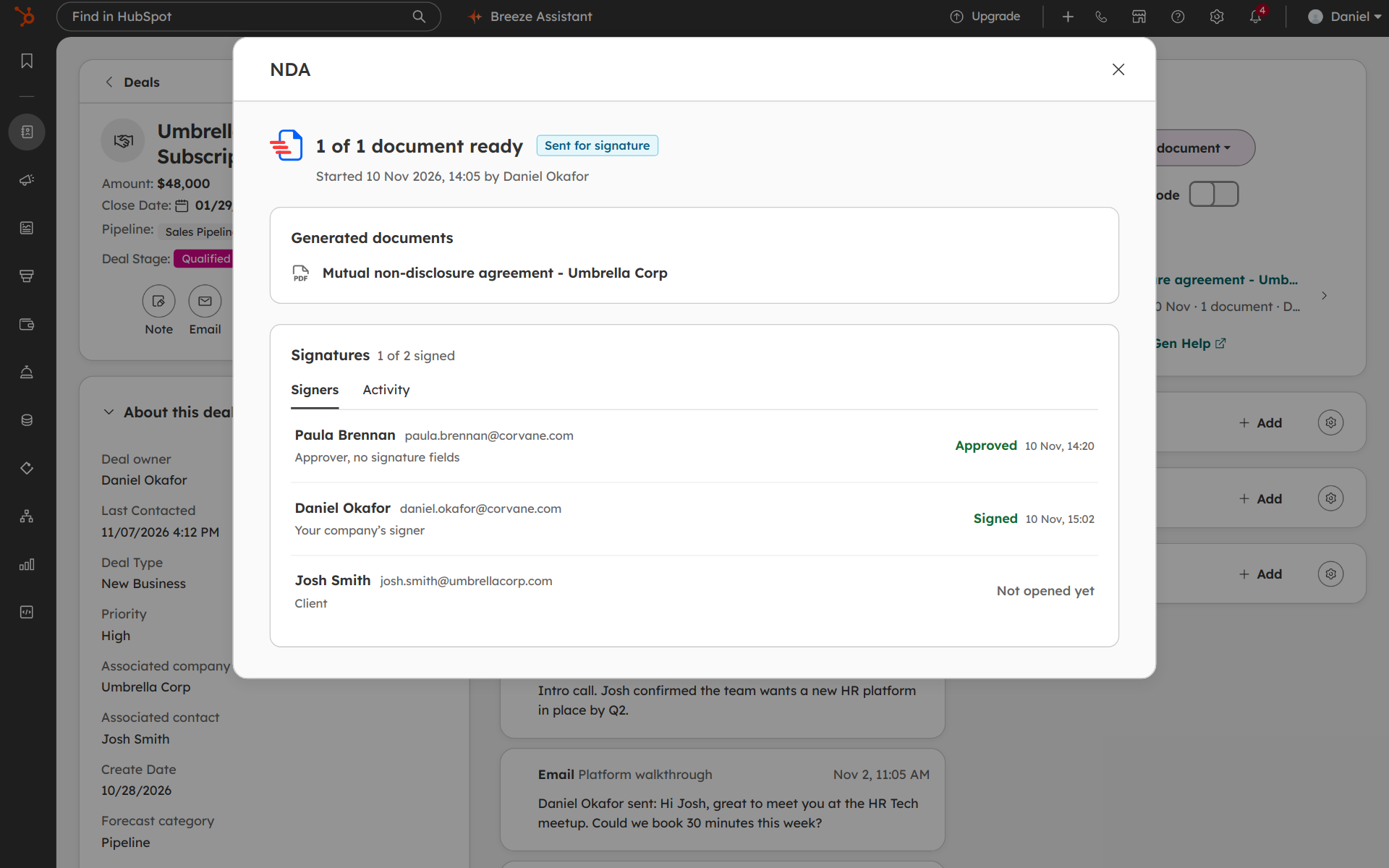
Once Paula approves, the NDA moves to Daniel. Daniel opens the NDA and signs. The window updates to "1 of 2 signed."
9
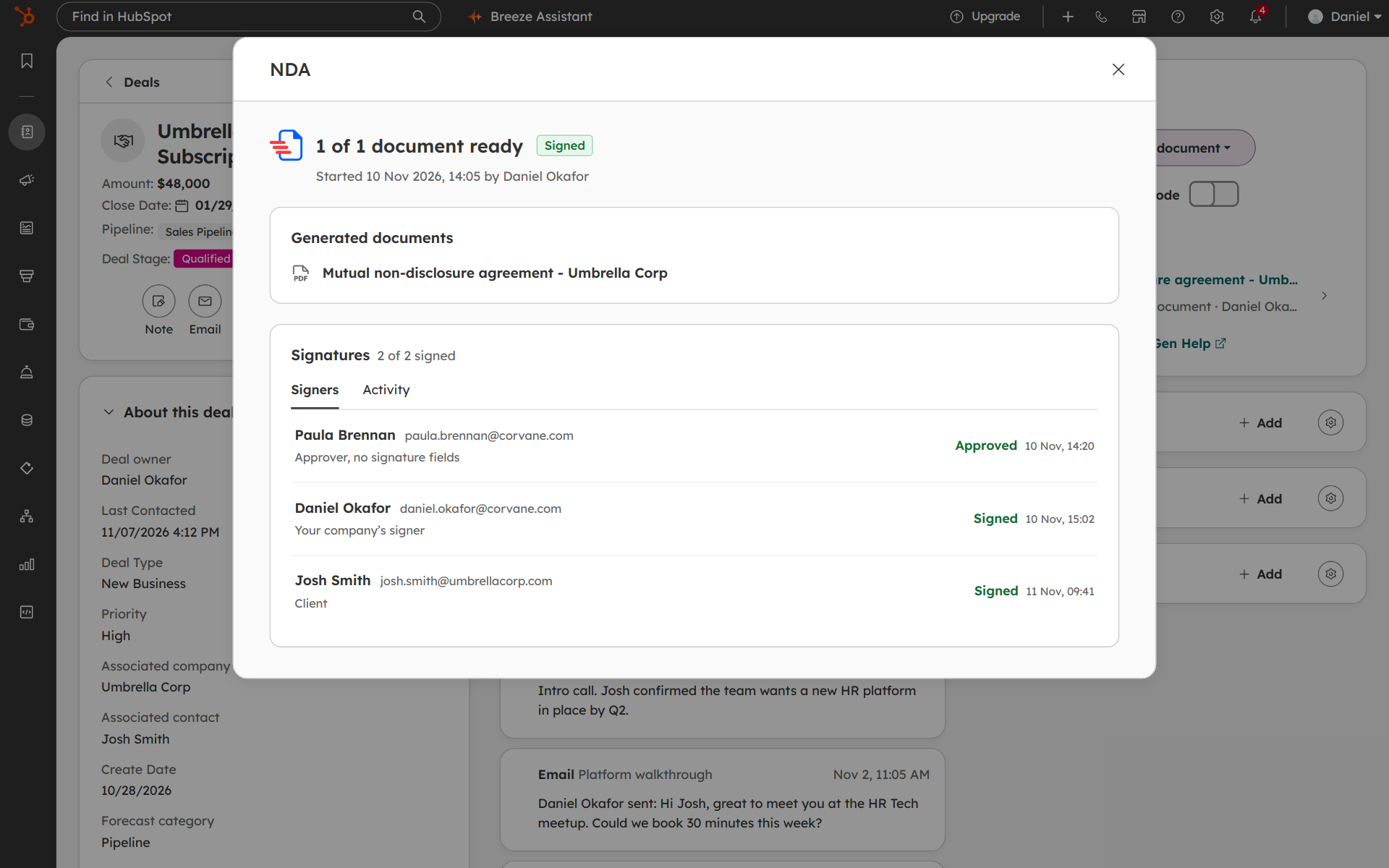
Josh gets the NDA last and signs. The envelope is marked Signed. The NDA went through an internal approval, both parties signed, and the whole process stayed on the HubSpot deal. No email to legal and no waiting for a reply.
DocuGen for HubSpot: $0 a month for up to 400 documents, or up to 80 e-signed documents, per account per month, with unlimited users and no watermarks, as of November 2026.
For more on how e-signature works outside quotes, see Do you need DocuSign to sign documents in HubSpot?
Install DocuGen from the HubSpot Marketplace and try the approval step on your next deal.
Yes. Upload any .docx file and place HubSpot property placeholders where deal values belong. DocuGen keeps the layout, logos and tables from the original Word file.
The full flow stays on the deal record. The approver gets an email to review, approves from the signing link, and the status updates on the deal card. No files leave HubSpot.
The approver can void the envelope. When an envelope is voided, no other signers receive the document and the status on the deal card shows "Voided."
The free plan covers up to 80 e-signed documents per account per month, with unlimited users, as of November 2026. Paid plans start at $99 a month for 1,000 documents, as of November 2026.
Published 11 Nov 2026
· Updated 12 Nov 2026

 Add to monday
 Add to HubSpot